Google Search Console is Google's free tool for site owners: it shows how your site appears in Google Search, which pages are indexed, and what Google found broken. This guide walks through setup and every main report in the order you'll need them, and links to our deep dives where a report deserves more than a few paragraphs.
What Search Console is (and what it isn't)
Search Console reports on your own site, from Google's side. It answers questions like: which searches show my pages, how often people click, which pages Google has indexed and why the others aren't, and whether Google has found a security problem or applied a manual action. Google's getting started guide describes it as useful for anyone with a website, from site owners to developers.
What it doesn't do: show search volume for keywords you don't appear for, report on competitors' sites, or tell you exactly where you ranked for one search at one moment. Every number is about your verified property and the searches where it actually appeared. That makes it the most reliable source for your own site, and useless for anyone else's.
Add and verify your site
You can only see data for sites you've proven you control. In Search Console, open the property selector at the top left, choose Add property, then pick one of two types. Google's help on adding a property explains the difference:
| Domain property | URL-prefix property | |
|---|---|---|
| Example | example.com |
https://www.example.com/ |
| Covers | All subdomains (www, m, blog…), all paths, both http and https |
Only URLs that start with that exact prefix, protocol included |
| Verification | DNS record only (with exceptions for sites hosted on Blogger or Google Sites) | Several methods: HTML file, HTML tag, Google Analytics, Google Tag Manager, DNS |
| Best for | The complete picture of a site | A section you want to report on separately, or when you can't edit DNS |
Start with a Domain property if you can edit your DNS. It catches traffic that a single URL-prefix property misses, such as the http:// version or a forgotten subdomain. You can still add URL-prefix properties later for sections like /blog/ and filter the Domain property by page in the meantime.
Google's verification help lists the methods. The rules that matter after the first day:
- Keep the token in place. Verification lasts only as long as Search Console can find your token. Deleting the DNS record, the HTML file or the meta tag eventually removes your access.
- Add a second method. Google recommends more than one, because a theme change can silently remove an Analytics or Tag Manager snippet.
- Don't overwrite another owner's token when you use the same method.
- Use the token exactly as given. A modified tag or snippet fails verification.
Each Google account can hold up to 1,000 properties, so agencies rarely hit a limit.
Users and permissions
Once verified, an owner can add other people under Settings > Users and permissions. Google's permissions help defines the levels:
- Owner. Full control: adds and removes users, changes settings, uses every tool. A verified owner has their own token; a delegated owner was added by another owner.
- Full user. Sees all data and can take some actions, but can't add users.
- Restricted user. Sees most data, with fewer actions available.
A property can have up to 100 non-owner users. Give clients and freelancers full or restricted access rather than ownership, and keep at least two verified owners so you're not locked out when one person leaves. If every verified owner loses access, everyone does.
Tools that read Search Console data, including Serplyze, connect through a Google account that already has access to the property. Serplyze asks only for the read-only Search Console permission: it can read performance data but can't change settings, submit sitemaps or add users.
The Performance report
Performance > Search results is where most people spend their time. Google's Performance report help covers it in full; here is the map.
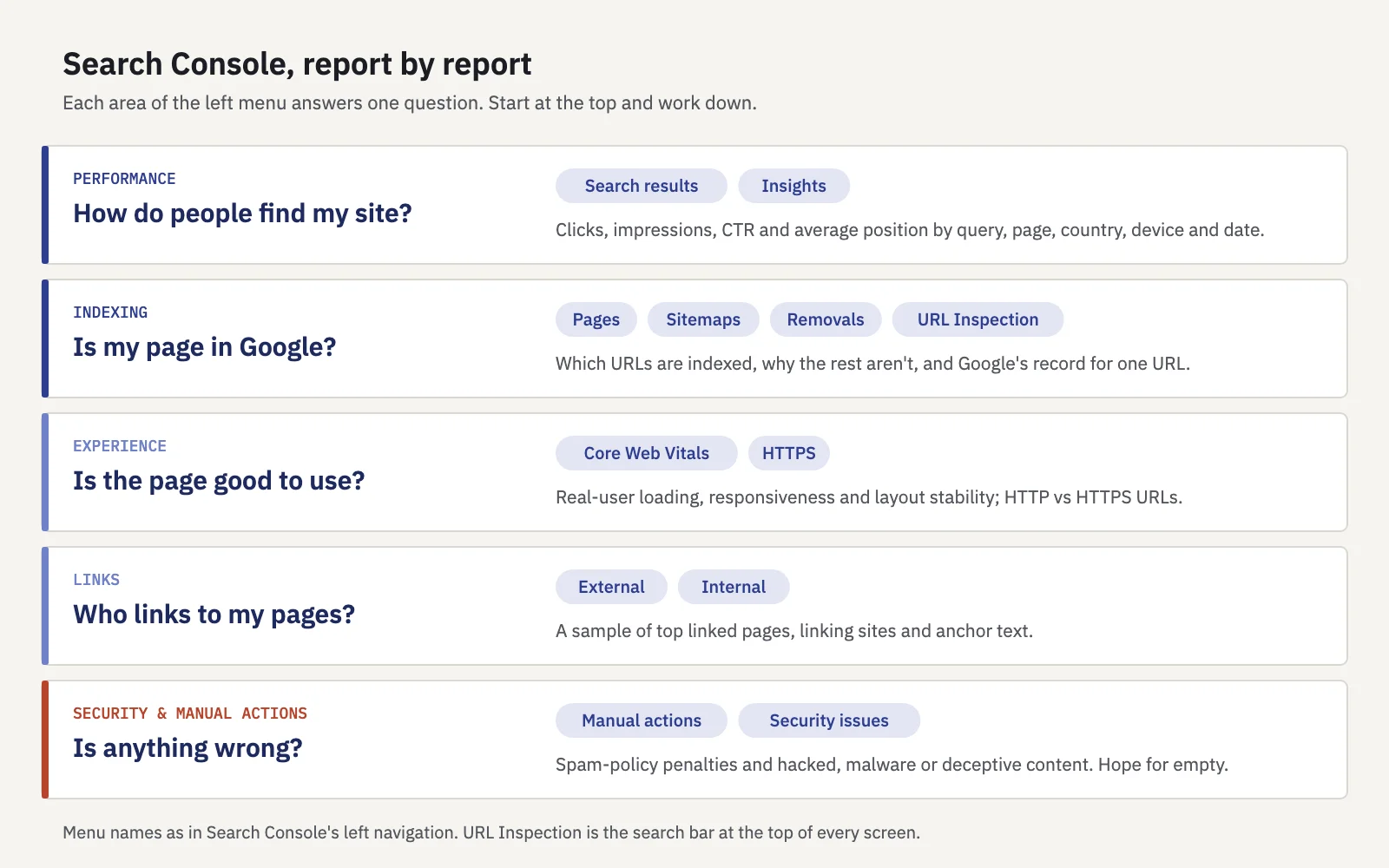
Four metrics. Clicks, impressions, CTR (clicks divided by impressions) and average position. Position is the topmost position your site held in a result, averaged over impressions, which is why it rarely matches what you see when you search yourself. Google's metric definitions explain how each is counted. Two of them are easy to misread, so we wrote separate guides: how average position is calculated and what a good CTR is.
Dimensions. The table under the chart has tabs for Queries, Pages, Countries, Devices, Search appearance and Dates. Pick a tab to see the same four metrics split that way.
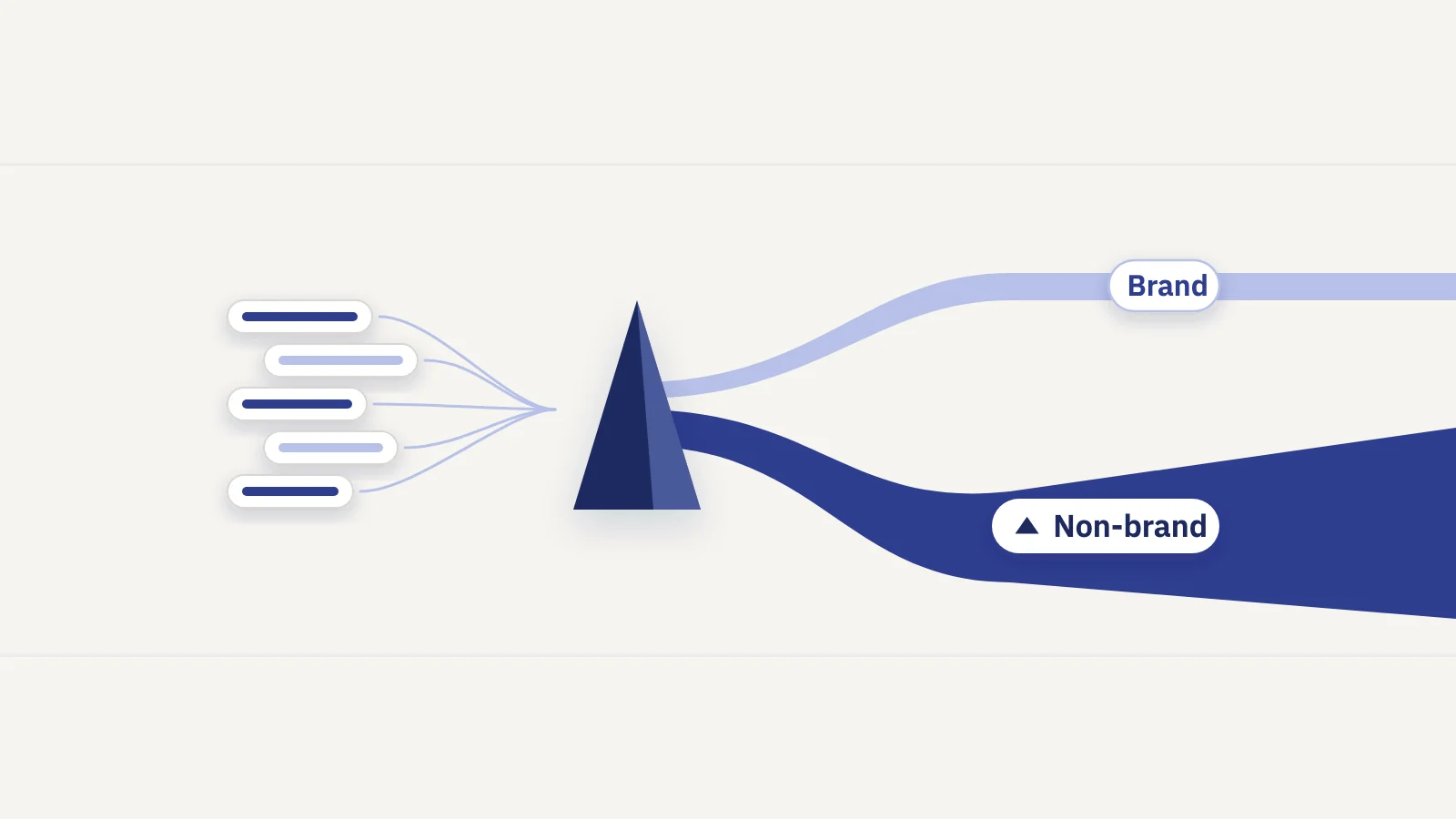
Filters. The bar above the chart sets the search type (Web is the default; Image, Video and News are separate) and the date range (the past three months by default, up to 16 months). Click + Add filter to filter by query, page, country, device or search appearance. Query and page filters accept regular expressions: our Search Console regex guide has 15 filters worth saving, the free regex tester checks a pattern against your own queries before you paste it in, and the regex cheat sheet is a printable copy. To split branded from non-branded queries, see branded vs non-branded traffic.
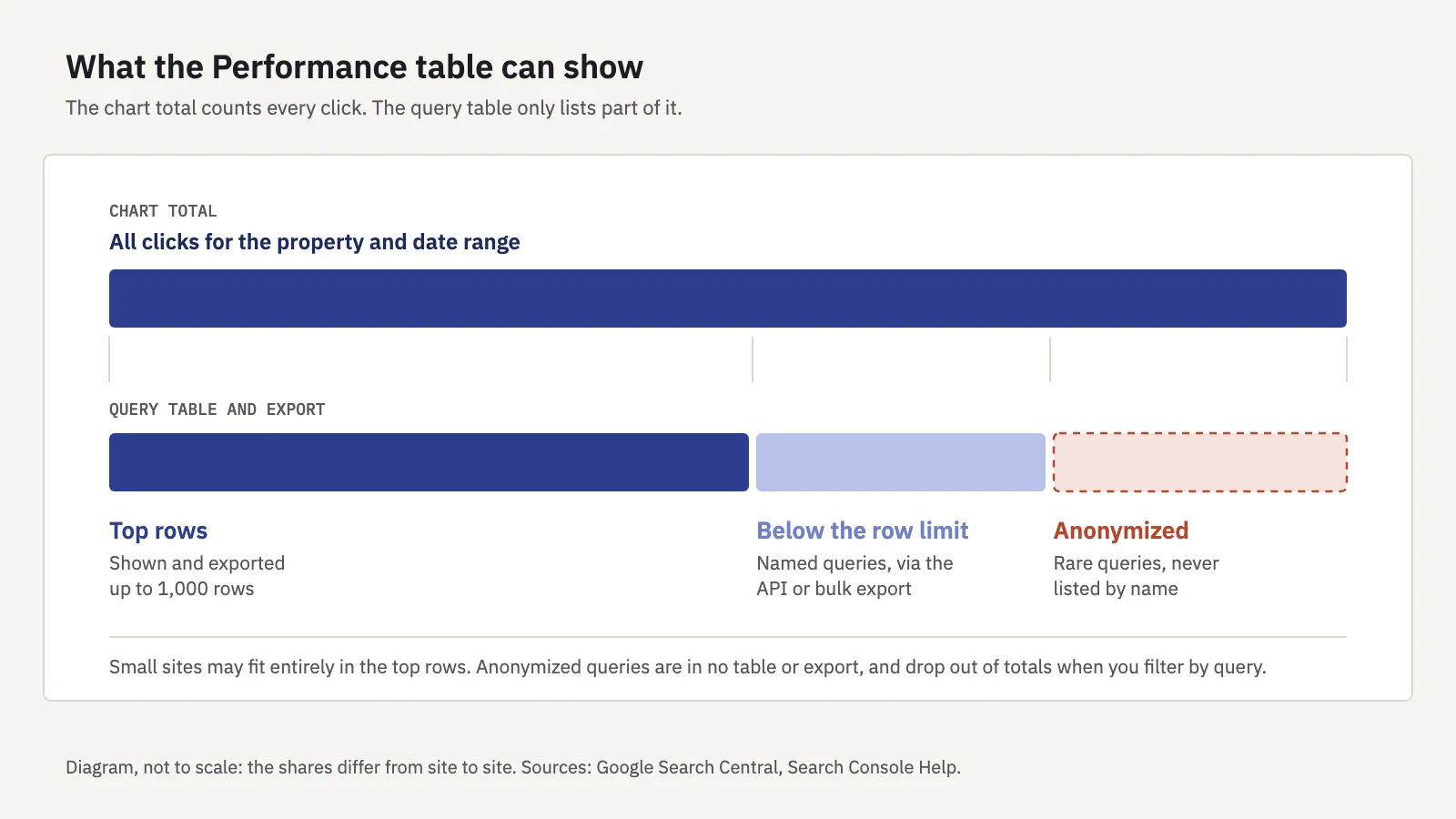
Compare. In the date filter, choose Compare to set two periods side by side; the table then shows both and the difference. You can also compare two queries, pages or countries through their filters. Google's filtering and comparison help covers the details, including that filtering by query leaves out anonymized queries from the totals.
The report answers most traffic questions when you combine these. A few we've written up step by step:
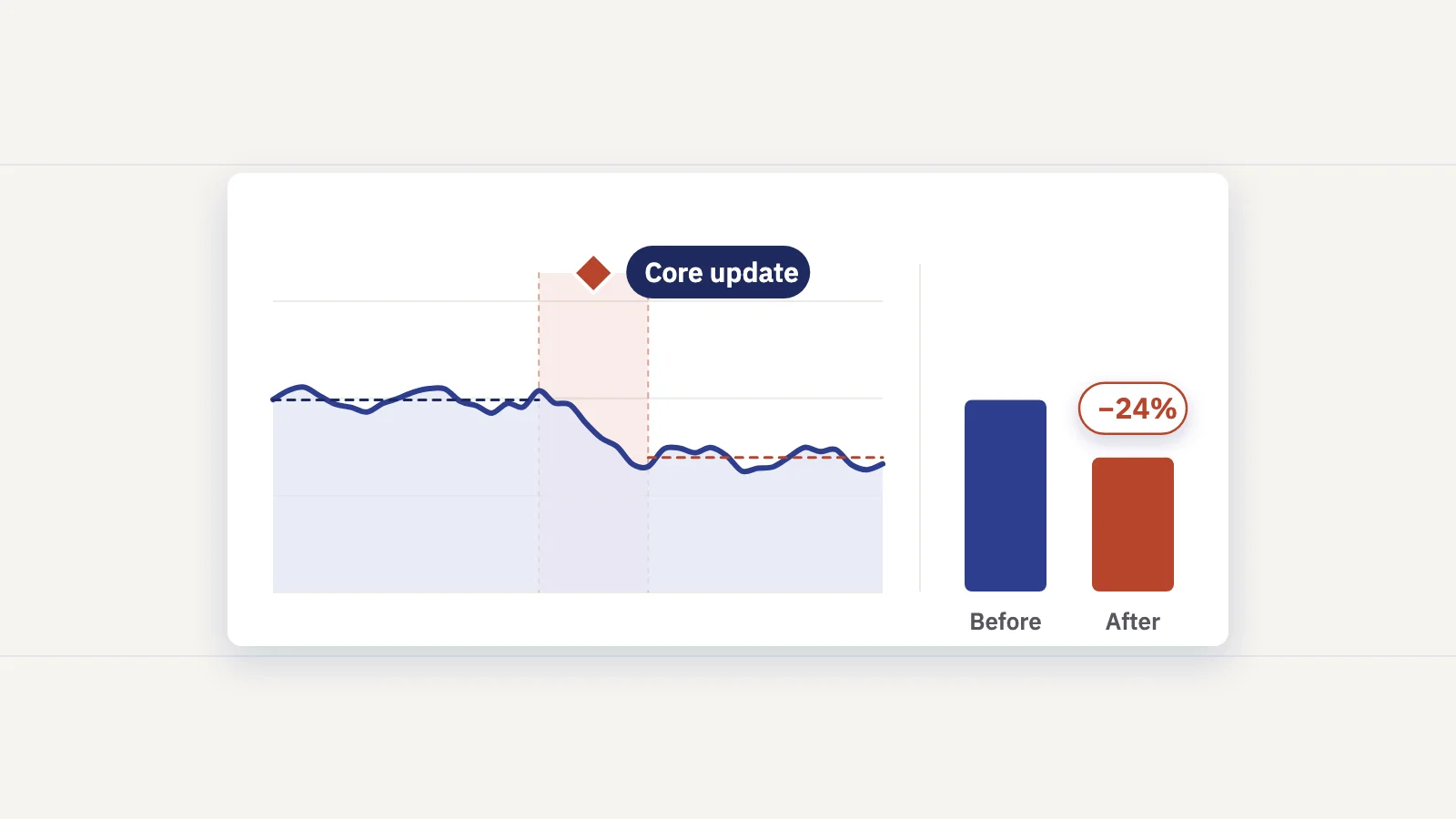
- Why did traffic drop? A Search Console diagnosis and measuring a core update's impact.
- Which pages are slipping? Content decay.
- Are two pages competing? Keyword cannibalization.
- What should we write next? Keyword research and content gap analysis from your own queries.
- How are AI Overviews affecting clicks? Zero-click searches and AI search visibility.
Indexing: Page indexing, URL Inspection, Sitemaps and Removals
A page that isn't indexed can't get any search traffic, so the indexing reports come next.
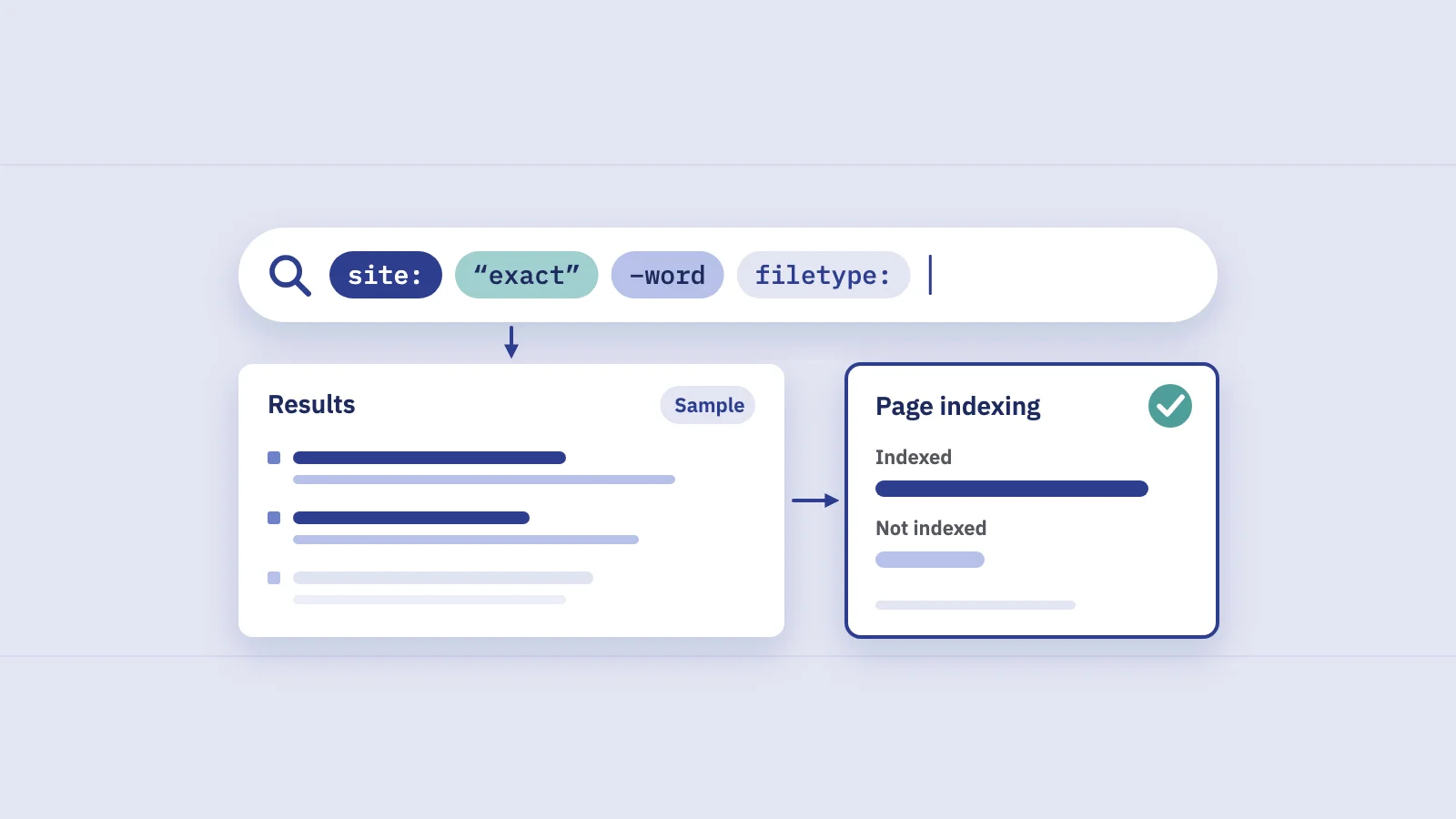
Page indexing (Indexing > Pages) shows how many known URLs are indexed and lists the reasons the rest aren't, such as "Crawled - currently not indexed" or "Duplicate without user-selected canonical". Google's Page indexing help is clear that not every URL should be indexed. Our guide to indexing in SEO goes through each status and what to do about it, and canonical tags covers the duplicate statuses.
URL Inspection is the search bar at the top of every Search Console screen. Paste a URL from your property to see Google's record for it: whether it's on Google, the last crawl, the user-declared and Google-selected canonical, and detected rich results. Test live URL fetches the page now, and Request indexing asks for a crawl. Google's URL Inspection help notes that both have daily limits and that a request "does not guarantee" indexing.
Sitemaps (Indexing > Sitemaps) is where owners submit a sitemap URL and check whether Google could read it. Statuses are Success, Has errors and Couldn't fetch. Per Google's Sitemaps report help, a sitemap can hold up to 50,000 URLs or 50 MB uncompressed, and a listed URL is still not guaranteed to be crawled or indexed. To compare what's in your sitemap with what Google indexed, see how to find every page on your website and the free website page counter.
Removals hides a URL from Google Search for about six months. It's an emergency brake, not a deletion: Google's Removals help says the tool affects only Google Search, and for permanent removal you delete the page (404 or 410), password-protect it or add noindex. Robots.txt isn't the way to keep a page out of the index; our post on robots.txt vs noindex explains why, and the robots.txt tester checks your rules.
Experience: Core Web Vitals and HTTPS
The Core Web Vitals report groups your indexed URLs as Good, Needs improvement or Poor on LCP, INP and CLS, separately for mobile and desktop. It uses field data from real Chrome users and shows a sample of URLs; pages without enough data are judged as part of a broader group. Google's Core Web Vitals report help has the thresholds; our Core Web Vitals guide covers what to fix first.
The HTTPS report counts indexed URLs served over HTTP versus HTTPS. Ideally it shows no HTTP URLs. Google's HTTPS report help lists the usual causes, such as an invalid certificate or a sitemap that still points to HTTP. If you're moving URLs, check redirects with the redirect checker and our 301 redirects guide.
Links
The Links report shows top linked pages, top linking sites and top linking text for external links, plus the most linked pages within your site. Google's Links report help is explicit that it shows "a sample" of links and that tables stop at 1,000 rows, so treat it as a profile, not a complete backlink list. The internal links table is useful on its own: important pages that few of your own pages link to are easy wins. Our internal linking guide shows how to use it with Performance data.
Manual actions and Security issues
Two reports you hope stay empty.
Manual actions lists penalties a human reviewer at Google applied for breaking Google's spam policies, such as unnatural links or thin content. Google's Manual actions help says you'll be told in the report and in the Search Console message center. Fix the issue on every affected page, then click Request Review and explain what you did.
Security issues covers hacked content, malware and unwanted software, and social engineering. The process is the same: fix everything listed, test, then request a review. Google's Security issues help notes that reviews can take days or weeks.
Data limits to know before you report
Search Console data is accurate, but not complete. Five limits explain most "the numbers don't add up" questions:
| Limit | What it means | Read more |
|---|---|---|
| 16 months of history | Performance data goes back 16 months; older data is gone unless you stored it | SEO forecasting |
| Anonymized queries | Rare queries are left out of tables and exports for privacy, but counted in chart totals | Anonymized queries |
| Row limits | The interface shows and exports at most 1,000 rows; the API returns more (Google's deep dive) | Find every page |
| Preliminary days | The newest data can be preliminary and change, per Google's Performance report help | SEO monitoring |
| Canonical attribution | Clicks on a duplicate URL count toward its canonical, per Google's dimensions help | Canonical tags |
Two practical consequences. Export or store the data you'll want next year, because the 16-month window keeps moving. And on a large site, read the UI table as the top of your traffic, not all of it; Google's bulk data export to BigQuery is the way to get the full set.
Serplyze syncs your Search Console data daily and requests each tracked keyword by its exact query text, so a keyword isn't cut off by the 1,000-row table limit however large the site is. Preliminary days are drawn as provisional and left out of totals and changes. See how the data works.
A first-month routine
If you've just set up Search Console, this order gets you from zero to a working baseline:
- Verify a Domain property and add a second verification method.
- Add your team with the lowest permission level each person needs, and keep two verified owners.
- Submit your sitemap and check it reaches Success.
- Read Page indexing filtered to submitted pages, and inspect a few important URLs.
- Check Manual actions and Security issues once, so you know what "clean" looks like.
- Set your Performance baseline: last 3 months, Web, with clicks, impressions, CTR and position, then save the regex filters you'll reuse.
- Decide what you'll report each month. Our SEO KPIs post lists the metrics worth tracking, and the monthly SEO report template gives you a structure.
After that, Google's own advice is that you don't need to log in every day: it emails you about new issues, and a monthly check, or one after site changes, is enough for most sites. Our monthly audit routine and the SEO audit checklist turn that into a 60-minute habit.
Key takeaways
- Search Console reports on your own verified site from Google's side: search traffic, indexing, page experience, links and security.
- Use a Domain property when you can edit DNS, keep the verification token in place, and add a second method.
- Performance > Search results is the core report: four metrics, six dimensions, filters with regex, and period comparisons.
- Page indexing gives the site-wide picture; URL Inspection gives Google's record for one URL.
- Know the limits before you report: 16 months of history, anonymized queries, 1,000-row tables, preliminary recent days and canonical attribution.
Serplyze is a rank tracker built on your own Search Console data: daily positions for the keywords you choose, with the clicks behind them. Start free and connect the property you just verified.