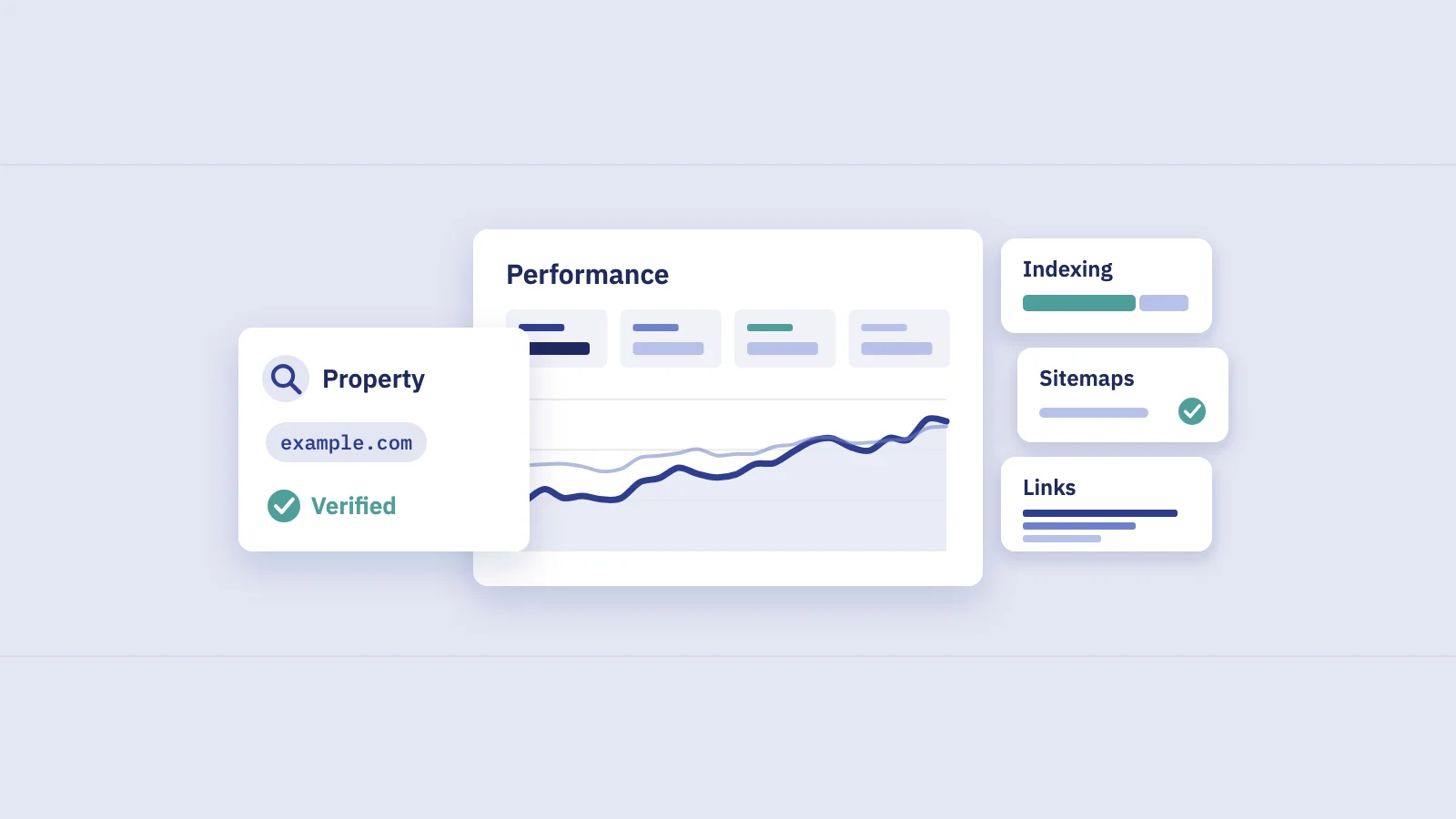
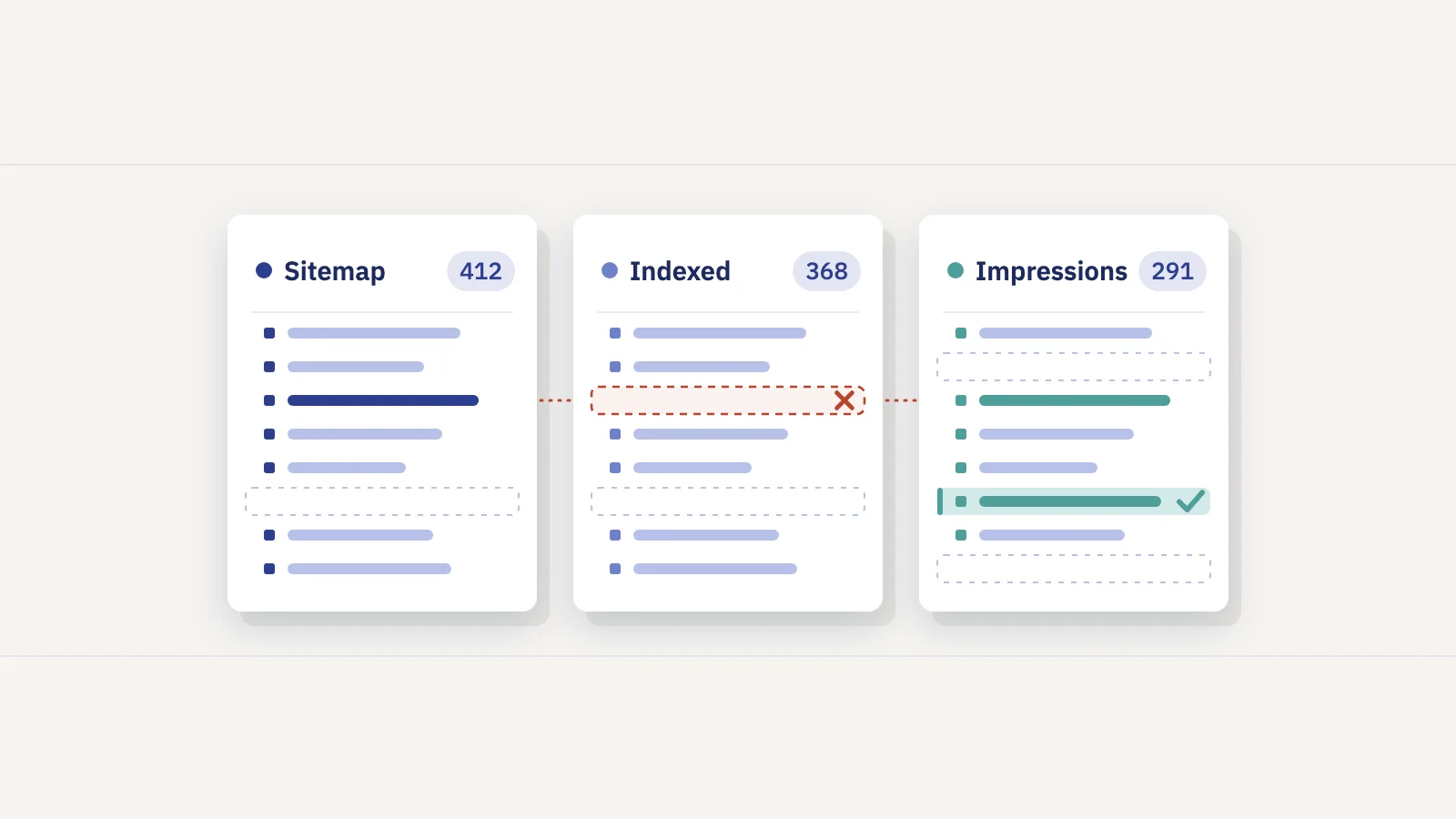
There is no single list of every page on your website. Your sitemap, Google's index, your search traffic, a crawl and your CMS each hold a different list, and the useful work is in comparing them: the gaps show orphan pages, pages Google ignores and pages nobody ever sees in search.
Why every list gives a different number
Ask "how many pages does my website have?" and you get at least five answers:
- Your sitemap lists the URLs you told Google about. It can be out of date, and it often leaves pages out or includes ones that no longer exist.
- Google's index holds the URLs Google decided to keep. Google doesn't guarantee that it will crawl, index or serve any page, and duplicates are left out on purpose.
- Search traffic covers only the indexed pages that actually appeared for a search in your date range.
- A crawl finds the pages that internal links reach, and nothing else.
- Your CMS knows every page that was published, including drafts that went live by mistake and pages no menu links to.
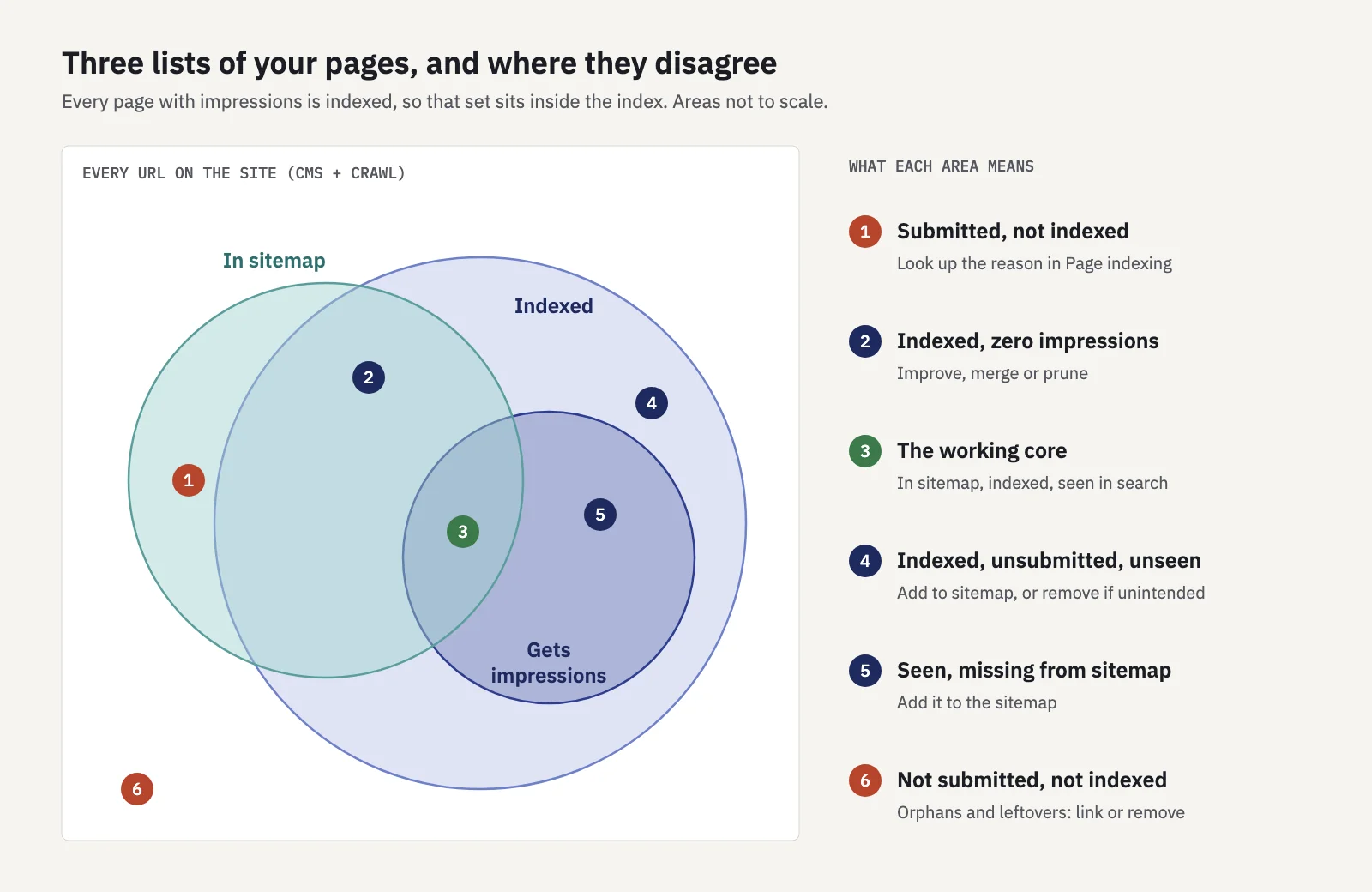
The overlaps are where the answers are. A page in your sitemap that Google never indexed, a page with impressions that isn't in your sitemap, a page in the CMS that no crawl reaches: each one is a small problem with a known fix. Below are the six sources, then a method for combining them.
1. Read your XML sitemap
Most sites publish a sitemap at /sitemap.xml or /sitemap_index.xml. If neither works, open /robots.txt and look for a Sitemap: line. Many CMSs and plugins generate the file automatically.
Large sites split it up. Google's limit is 50,000 URLs or 50 MB (uncompressed) per sitemap file, so bigger sites use a sitemap index that points to several files, often one per content type. Open each child sitemap and collect the <loc> values; a spreadsheet's XML import or a short script does this in a minute.
Treat the sitemap as your intended list, not the real one. It shows what you want indexed. It says nothing about what exists, what Google kept or what gets traffic.
2. Try a site: search, and know its limits
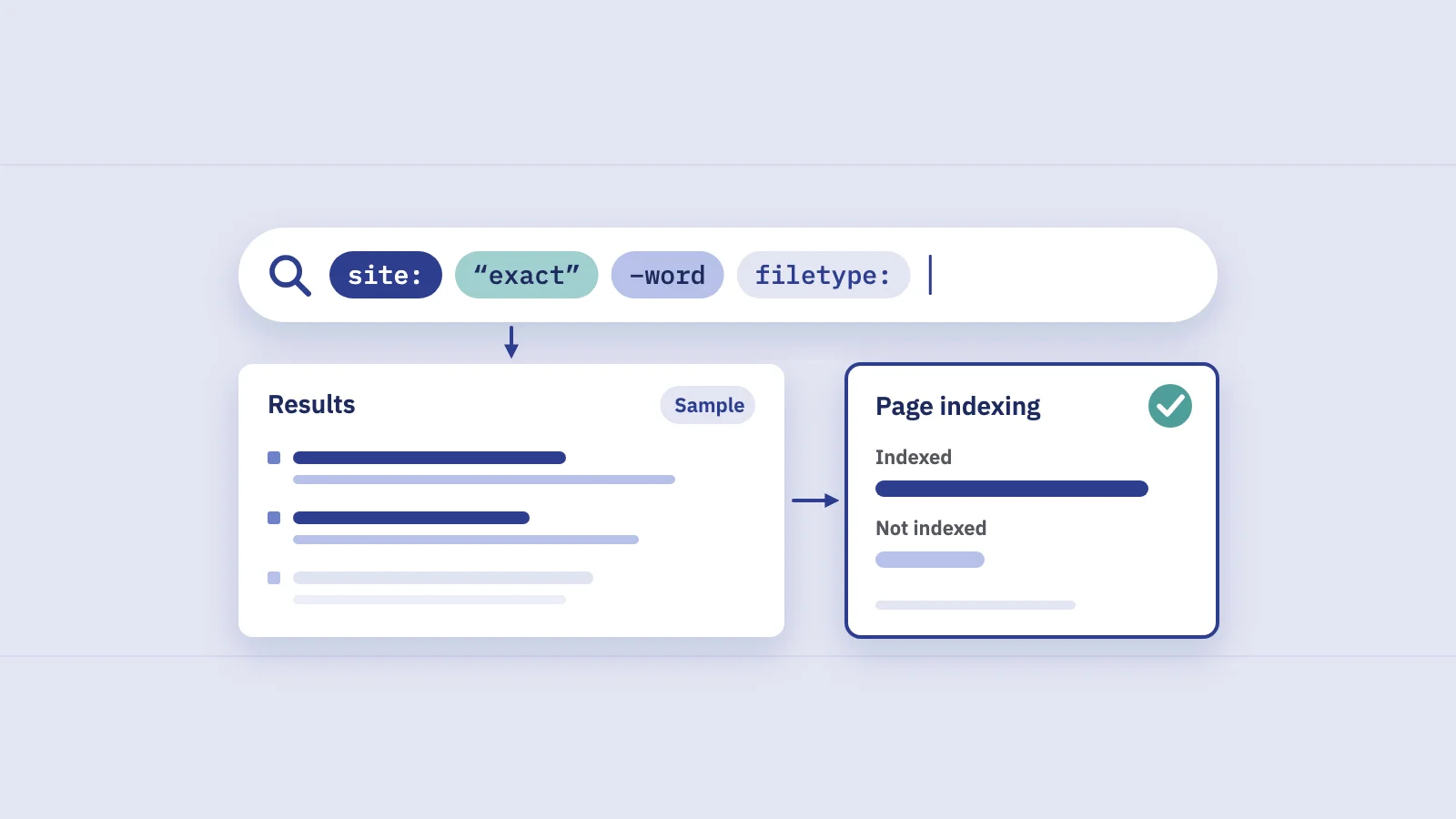
Searching site:example.com on Google shows results from your domain, and site:example.com/blog/ narrows it to a folder. It's quick for a sanity check: is the site in Google at all, are there odd subdomains or old URLs still showing?
It is not a page counter. Google's own documentation says an indexed URL can show up for a site: query, "however it's not guaranteed". The result count is a rough estimate, the list isn't ordered by anything useful, and you can't export it. Use Search Console for real numbers.
3. Search Console's Page indexing report
In Search Console, open Indexing > Pages. The Page indexing report splits the URLs Google knows about into Indexed and Not indexed, and lists the reasons pages weren't indexed, such as "Crawled - currently not indexed", "URL marked 'noindex'" or "Duplicate without user-selected canonical".
Two things make it useful for this job:
- The sitemap filter. The dropdown above the chart switches between All known pages, All submitted pages, Unsubmitted pages only and a single sitemap. Comparing "All submitted pages" with "All known pages" shows how much of what Google found isn't in your sitemap, and the reverse.
- The reasons. Each reason opens a list of example URLs, so you can see which kinds of pages fall out.
The limit: those example lists stop at 1,000 rows and, per Google, aren't guaranteed to include every URL even below that. The counts are reliable, the URL lists are samples. To check one URL properly, use the URL Inspection tool. The guide to indexing in SEO walks through each status and what to do about it.
4. The Performance report's Pages tab
Performance > Search results, then the Pages tab, lists every URL that got at least one impression in the date range, with clicks, impressions, CTR and position. Set the date range to the longest you have (up to 16 months) so pages with occasional impressions show up.
This is the list that matters commercially: pages that actually appear in search. Two caveats:
- The interface shows and exports up to 1,000 rows. Larger sites need the Search Console API, Looker Studio or the BigQuery bulk export.
- Google assigns search data to the canonical URL it selected, so duplicate URLs fold into their canonical and don't appear as separate rows.
In Serplyze, Traffic > Pages lists every page with impressions in the period, with clicks, impressions, CTR, position and the change against a comparison period. On paid plans it reads up to 25,000 pages through the Search Console API, or up to 100,000 rows with a connected BigQuery export, and the CSV export includes every matching row. The New and Lost quick views show pages that started or stopped getting impressions. The Free plan shows the top 100 pages by clicks. See Traffic.
5. Crawl the site yourself
A crawler starts at your homepage, follows every internal link and records each URL it reaches, with its status code, canonical tag, robots directives and title. You can use a desktop SEO crawler, a cloud crawler or a command-line tool such as wget in spider mode; they all work the same way.
A crawl answers a question no other source can: which pages can a visitor or a search engine actually reach by following links? Settings worth checking before you start:
- Start from the canonical host (https, with or without www, whichever you use).
- Respect robots.txt for a "what Google can crawl" view, or ignore it for a full inventory.
- Render JavaScript if your navigation is built client-side; otherwise the crawler may miss whole sections.
- Feed the crawler your sitemap URLs as well, so it also checks pages that no link reaches.
The weakness is the mirror image of its strength: a crawl can't find pages without internal links. Google can, through sitemaps, external links and old URLs it remembers.
6. Export from your CMS
Your CMS or database is the closest thing to the full inventory: every published post, product, category and landing page, often with publish dates and authors. Most platforms export posts or products to CSV, and a developer can query the database directly.
Expect noise. The export includes pages you'd forgotten (test pages, old campaign landing pages, tag archives), and it misses URLs the CMS generates on the fly, such as filters, pagination and search results. That's fine: you're about to compare it with everything else.
Which source to use for what
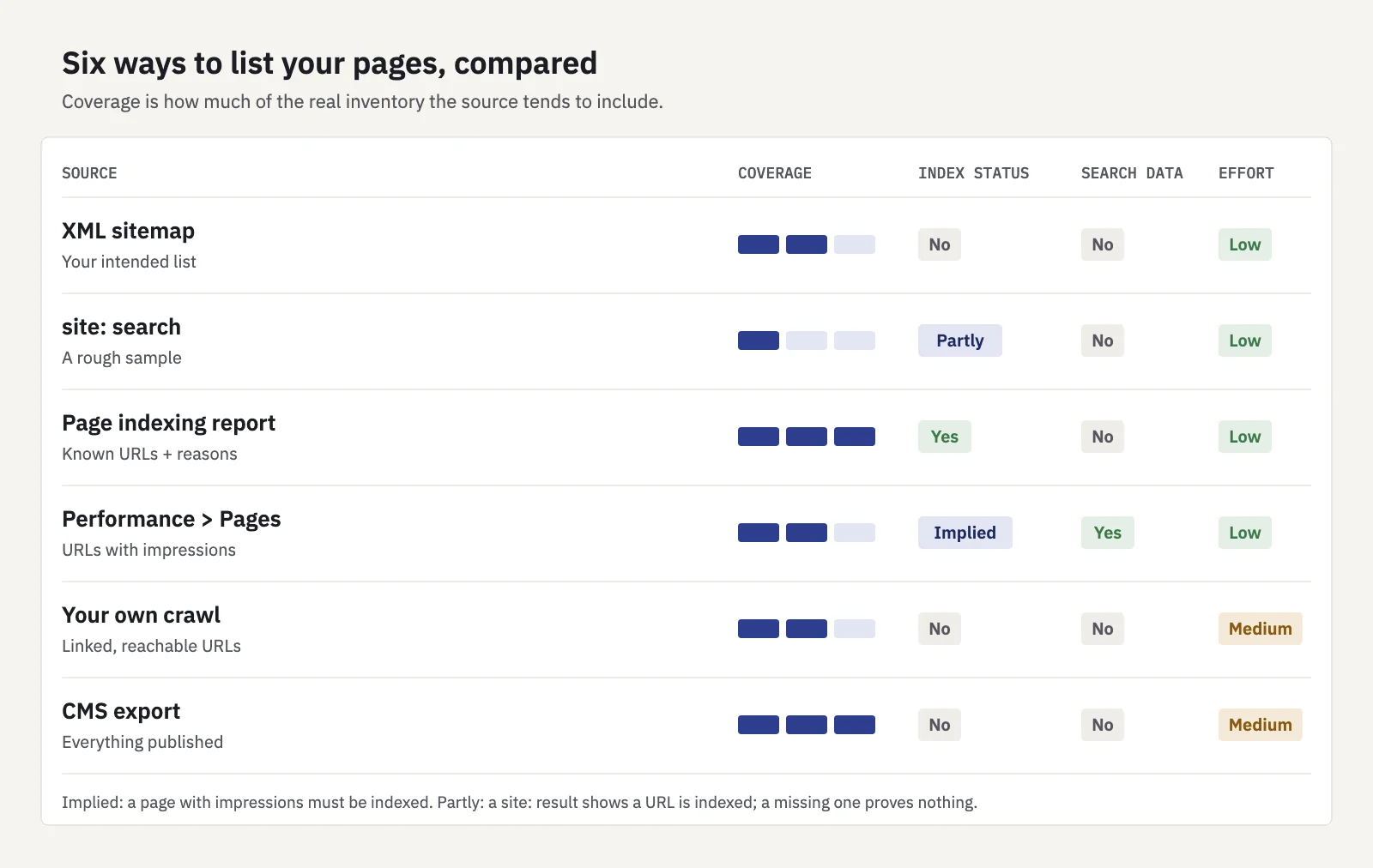
| Source | What it lists | Strengths | Limits |
|---|---|---|---|
| XML sitemap | URLs you submitted | Fast, your intended list | Often stale; says nothing about indexing or traffic |
| site: search | A sample of indexed URLs | Instant sanity check | Not complete, not exportable, count is an estimate |
| Page indexing report | URLs Google knows, indexed or not, with reasons | Official counts; sitemap filter | Example lists capped at 1,000 rows |
| Performance > Pages | URLs with impressions in the period | Shows what appears in search, with clicks | 1,000 rows in the UI; canonical URLs only |
| Your own crawl | URLs reachable through internal links | Status codes, canonicals, link paths | Misses pages without internal links |
| CMS export | Everything published | Closest to a full inventory | Misses generated URLs; includes forgotten pages |
Step by step: build one master list
- Collect the lists. Export the sitemap URLs, the CMS export, a full crawl and the Performance report's Pages tab over the longest range available (via the API or BigQuery if you have more than 1,000 pages).
- Normalize the URLs. Use one protocol and host, lowercase the host, and decide how to treat trailing slashes and query parameters. Unnormalized URLs are the most common reason the lists don't match.
- Put them in one sheet. One row per URL, one column per source with a yes or no.
- Add the status code and canonical from the crawl, so redirects, 404s and pages canonicalized elsewhere stand out.
- Check index status for the gaps. Use the Page indexing report's examples for patterns and the URL Inspection tool (or its API, which allows 2,000 inspections per property per day according to Google's usage limits) for the URLs that matter.
- Label every row with one of the gap types below, and give each label an owner and an action.
Expect the Performance list to be the shortest. Indexed pages that never show for any search in 16 months are common, especially on large sites, and they are exactly the pages worth reviewing.
What the gaps tell you
Orphan pages: in the CMS or sitemap, not in the crawl. Nothing links to them, so visitors can't reach them and Google sees them as unimportant. If the page should rank, link it from relevant pages and its category; if not, redirect or remove it. Internal linking in Search Console covers how to choose the source pages.
In the sitemap, not indexed. Look up the reason in the Page indexing report. Pages marked noindex, redirected or 404 should leave the sitemap. Duplicates need a clear canonical. "Crawled - currently not indexed" usually points at thin or near-duplicate content.
Indexed or getting impressions, not in the sitemap. Either the sitemap is incomplete (add the page) or Google is indexing URLs you didn't intend, such as parameters, tag pages or staging copies (fix with canonicals, noindex or redirects).
Indexed, zero impressions. These pages are in the index and nobody sees them. Some are fine (legal pages, contact). The rest are candidates to improve, merge with a stronger page or remove. If a page used to get impressions and stopped, it's a content decay case, not a zero-impression one.
Getting impressions, not in the CMS. Usually old URLs still indexed after a migration or URLs created by parameters. Check that they redirect to the right place.
To track the pages that matter as a set, Serplyze's content groups group pages by URL rules (for example everything under /blog/) and show their clicks and impressions together, plus an Ungrouped bucket for pages that fit no rule.
How often to repeat this
A full comparison is worth doing before and after a migration or redesign, after big content pruning, and about once or twice a year otherwise. In between, watch two cheap signals: the indexed count in the Page indexing report and the number of pages with impressions in the Performance report. If either moves sharply without a reason you know, run the comparison again.
Key takeaways
- No single source lists every page: the sitemap shows intent, the index shows what Google kept, the Performance report shows what appears in search, a crawl shows what links reach and the CMS shows what was published.
- A site: search is a sanity check, not a page counter; Google says it doesn't guarantee complete results.
- The Page indexing report gives reliable counts and reasons, but its URL lists are examples capped at 1,000 rows.
- Normalize URLs, put every source in one sheet and label the gaps: orphan, unindexed, unintended, zero-impression.
- Repeat the full comparison around migrations and once or twice a year; watch indexed and impression page counts in between.
Serplyze lists every page with impressions from your own Search Console data, beyond the interface's 1,000 rows, and flags pages that started or stopped showing in search. Start free and see which of your pages Google actually shows.