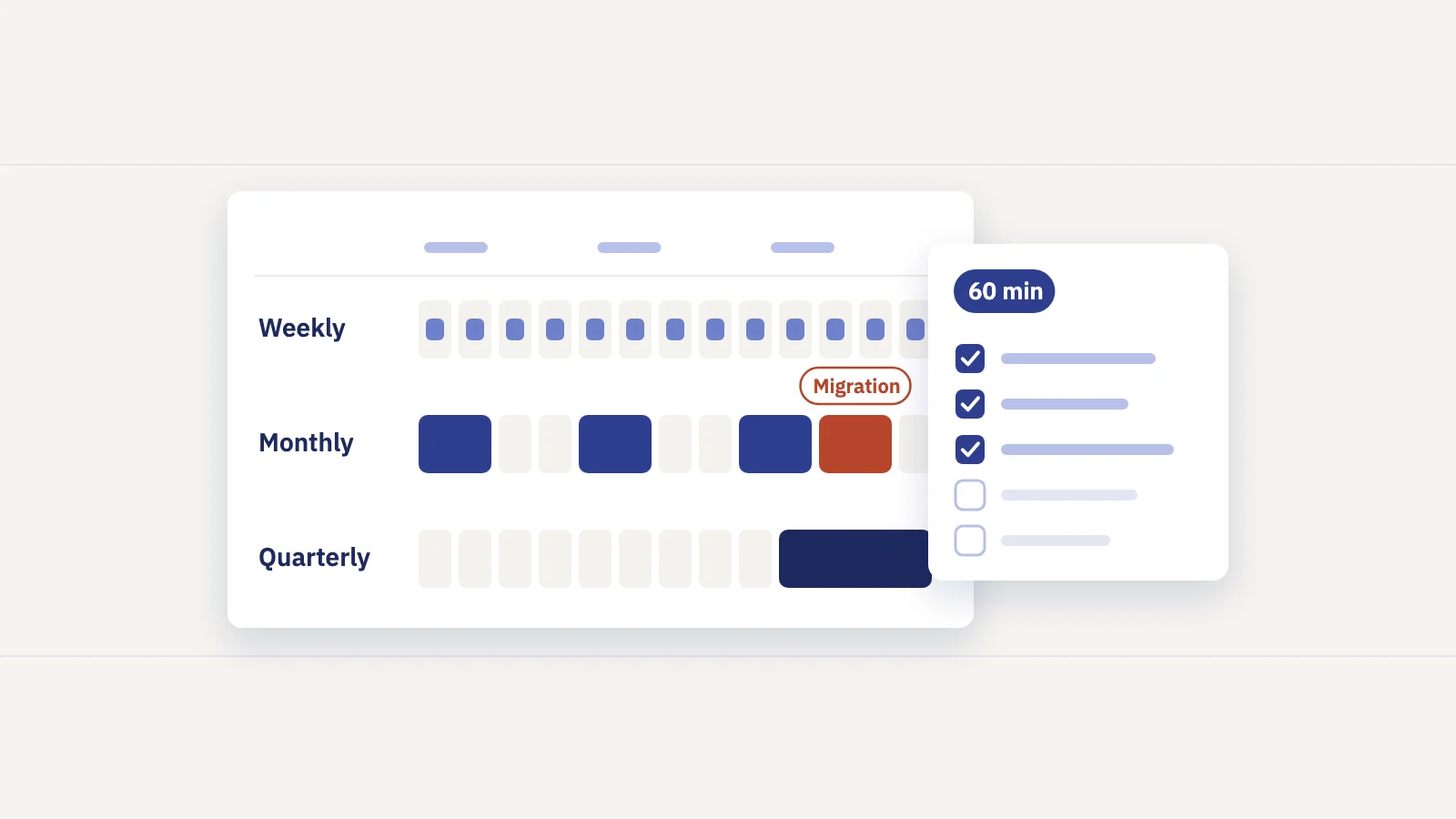
Most sites need a full SEO audit once or twice a year and a short check every month. How often beyond that depends on how big the site is and how fast it changes, and the monthly check can be a fixed 60-minute routine in Search Console.
How often should you do an SEO audit?
There is no single right interval. Google's own getting started guide for Search Console suggests checking your account "around once every month, or when you make changes to the site's content". That is a sensible floor for the light check. The full audit depends on two things: how many URLs you have, and how often they change.
| Site type | Full audit | Monthly routine | Between checks |
|---|---|---|---|
| Small site, under a few hundred pages, rarely changes | Once a year | 30–60 minutes | Search Console emails |
| Content site publishing every week | Every 6 months | 60 minutes | Weekly look at top movers |
| Large store or site with frequent releases | Every quarter | 60–90 minutes, split by section | Daily alerts on traffic and key pages |
| Any site, after a migration, redesign or CMS change | Right after, and again a few weeks later | As usual | Daily checks until it settles |
Treat these as starting points. If every audit finds the same short list of problems, you can stretch the interval. If each audit turns up something that cost you traffic for months, shorten it.
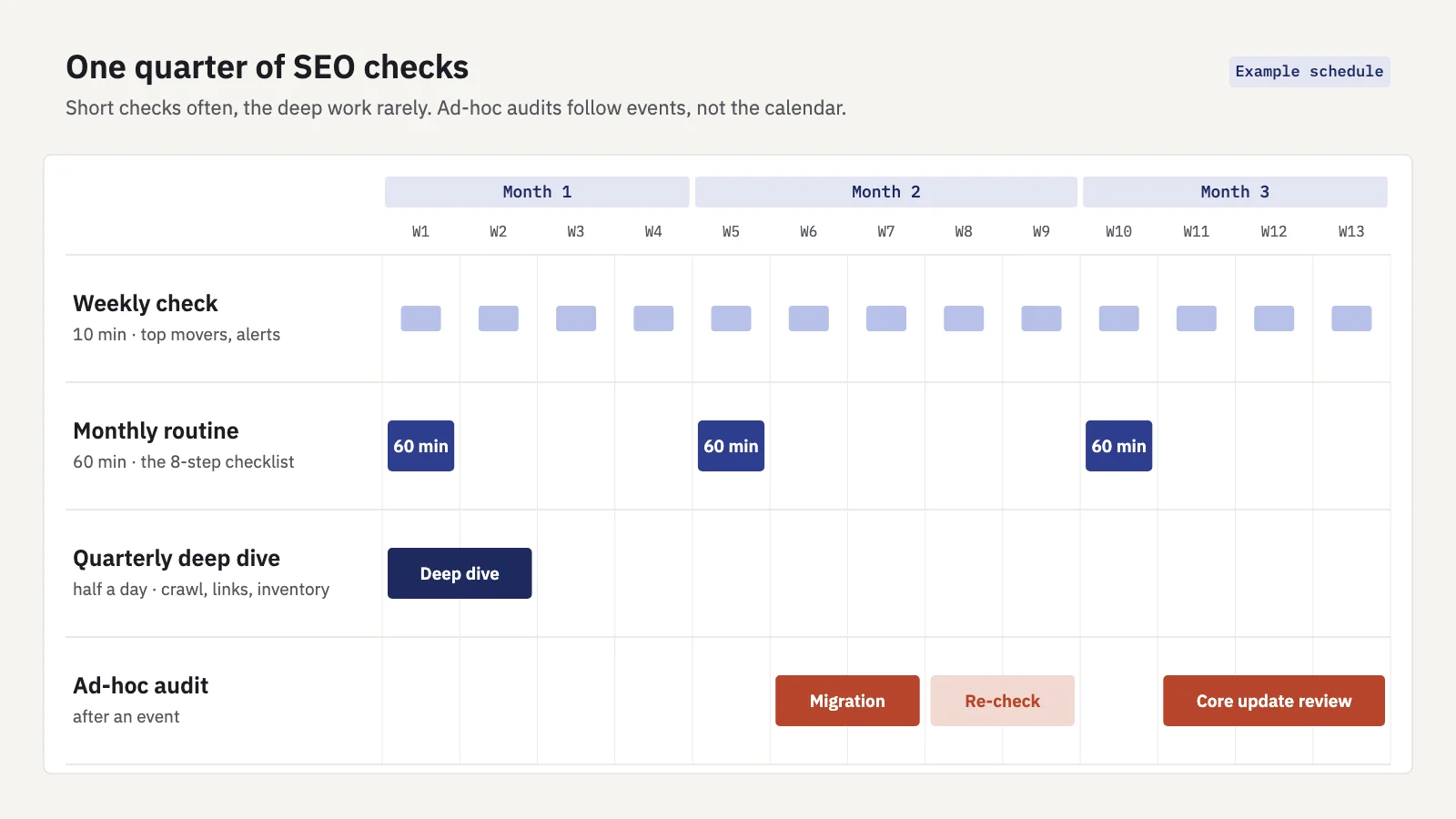
A full audit and ongoing checks are different jobs
A full audit looks at the whole site at a point in time: crawl every URL, review the templates, the internal links, the redirects, the structured data, the content inventory. It takes hours or days and produces a list of fixes. It answers "what is wrong with the site?"
Ongoing checks look at what changed since last time. They take minutes, use the reports Search Console already keeps for you, and answer "did anything break or slip since the last check?" Most of the damage a full audit finds started as a small change that a monthly check would have caught: a template that added noindex, a sitemap that stopped updating, a page that slid from position 3 to 9 over two months.
Continuous monitoring is a third layer: alerts and dashboards that watch a few signals every day and tell you when to look. We cover that in SEO monitoring: what to check daily, weekly and monthly. This post is about the periodic part: the monthly routine and the deeper audits around it.
The monthly 60-minute routine in Search Console
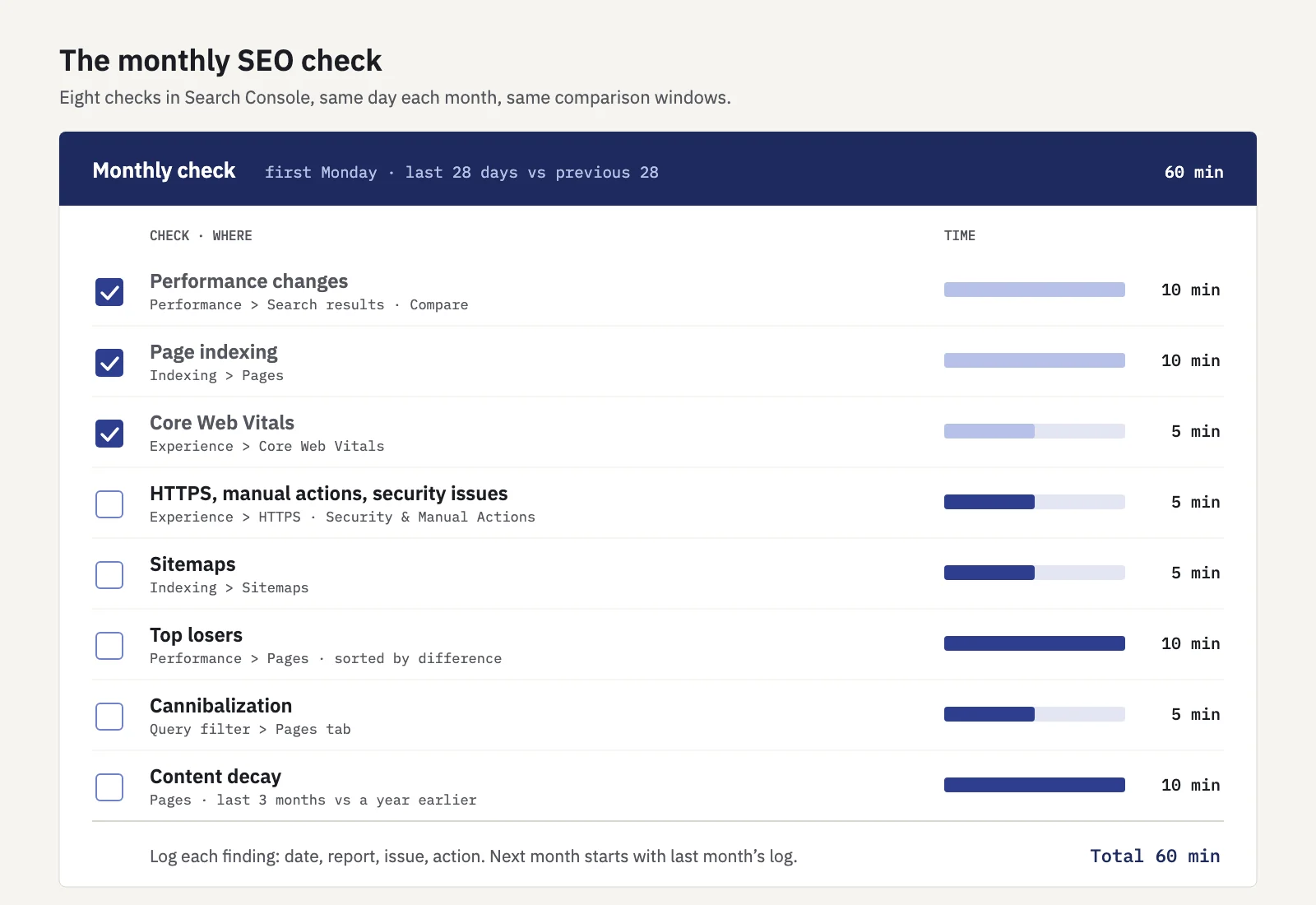
Do it at the same time each month, for example the first Monday, so the comparison windows line up. Keep a short log of what you found: a date, the report, the issue and what you did. Next month you start by checking last month's notes.
- Performance changes (10 minutes). Open Performance > Search results, set the date range to the last 28 days and click Compare against the previous period. Then compare the last 3 months with the same 3 months a year earlier, which takes seasonality out. Look at clicks, impressions, CTR and average position for the site, then at the Queries and Pages tabs sorted by the clicks difference.
- Page indexing (10 minutes). Open Indexing > Pages. Check the indexed count against last month and read the reasons pages are not indexed. A jump in "Excluded by 'noindex' tag", "Not found (404)" or "Server error (5xx)" usually means a release changed something. If you fix an issue, use Validate fix; Google says validation typically takes up to about two weeks.
- Core Web Vitals (5 minutes). Open Experience > Core Web Vitals for mobile and desktop. The report uses field data from the Chrome UX Report over the last 28 days (Google's help), so a fix shipped last week will not show yet. Look for URL groups that moved from Good to Needs improvement or Poor.
- HTTPS, manual actions and security issues (5 minutes). Open Experience > HTTPS and check for pages not served over HTTPS. Then open Security & Manual Actions > Manual actions and Security issues. Both should say no issues detected. Search Console also emails you when it finds new issues, but check the reports anyway in case the email went to someone who left.
- Sitemaps (5 minutes). Open Indexing > Sitemaps. Check that each sitemap's status is Success, that the "Last read" date is recent, and that the number of discovered pages matches roughly what you publish.
- Top losers (10 minutes). Back in Performance, keep the 28-day comparison and sort the Pages tab by the clicks difference, losses first. For the top five, add a Page filter and open the Queries tab to see whether position, CTR or the query mix changed.
- Cannibalization (5 minutes). For your most valuable queries, add a Query filter and open the Pages tab. If two of your URLs share the impressions, note the pair. Our guide to keyword cannibalization in Search Console covers how to confirm it and what to do.
- Content decay (10 minutes). Compare the last 3 months with the same months last year in the Pages tab and look for pages that lost clicks gradually, not in one step. The content decay guide has thresholds that keep small pages out of the list.
That is 60 minutes on a site where nothing is wrong. When something is wrong, stop the routine there and investigate; the rest can wait a day.
Use the same date windows every month: last 28 days against the previous 28, and last 3 months against the same months a year earlier. If the windows change from month to month, so do the numbers, and you end up chasing differences that come from the dates.
The monthly checklist
| Check | Where in Search Console | Time | What counts as a finding |
|---|---|---|---|
| Performance changes | Performance > Search results, Compare | 10 min | Clicks down year over year, or a drop with a date you can point to |
| Page indexing | Indexing > Pages | 10 min | Indexed count down, or a new or growing "not indexed" reason |
| Core Web Vitals | Experience > Core Web Vitals | 5 min | A URL group that moved to Needs improvement or Poor |
| HTTPS | Experience > HTTPS | 2 min | Any page not served over HTTPS |
| Manual actions, security issues | Security & Manual Actions | 3 min | Anything other than "No issues detected" |
| Sitemaps | Indexing > Sitemaps | 5 min | An error status, an old "Last read" date, a count that doesn't match |
| Top losers | Performance > Pages tab, sorted by difference | 10 min | A page that lost a large share of its clicks |
| Cannibalization | Performance > Query filter > Pages tab | 5 min | Two of your URLs splitting a valuable query |
| Content decay | Performance > Pages, year over year | 10 min | A gradual loss over several months |
Copy the table into a document or a sheet and add a "Found" and an "Action" column. After three or four months you have a record of what changed on the site and when, which is most of what the next full audit needs.
The quarterly deep dive
Once a quarter, give it half a day and look at the things that move slowly or that Search Console only shows in part:
- Crawl the whole site with a crawler of your choice and compare the URL count with your sitemaps and with the indexed count in Indexing > Pages. Large gaps in either direction need an explanation.
- Crawl stats. Open Settings > Crawl stats and check the host status. Google reports problems with robots.txt fetching, DNS and server connectivity over the past 90 days.
- Redirects and broken internal links. Chains, loops and links that point at redirects or 404s, usually left behind by earlier changes.
- Titles, descriptions and headings across templates: duplicates, empty ones, truncated ones.
- Structured data. Check the rich result reports under Enhancements (they appear only for the types Google finds on your site) for new errors.
- Internal linking to the pages that matter most. Search Console's Links report shows the internal links Google found for each page.
- Content inventory. Which pages get no impressions at all over the last 3 months? Decide to improve, merge, redirect or remove them.
- Query and page review against your goals. A full look at your SEO KPIs for the quarter, not just the last month.
Use 16 months of data where you can: that is all Search Console keeps. The UI exports up to 1,000 rows per table, so for larger sites use the Search Console API, Looker Studio or the bulk export to BigQuery for the quarterly pull.
When to run an audit outside the schedule
Some events justify an audit right away, whatever the calendar says.
A site migration or redesign. Audit before (crawl the old site, map every URL) and after (check redirects, indexing and traffic). Google's documentation on site moves says rankings can fluctuate while the site is recrawled and that for a medium-sized site it can take a few weeks or more for new URLs to replace old ones. Watch the Sitemaps and Page indexing reports for both versions and check Performance weekly until it settles.
A Google core update. Wait until the update has finished rolling out, then at least a full week more, and compare the week after with the week before it started. That is Google's own advice, and our post on core update impact in Search Console walks through it.
A sudden traffic drop. If clicks fall sharply over days rather than months, find the date first. Then check, in this order: Manual actions and Security issues, Page indexing for a jump in excluded pages, robots.txt and the most recent release, and only then content and rankings. Most sudden drops have a technical cause and a date.
A CMS, theme or template change. Anything that touches every page at once (canonical tags, robots meta, internal links in navigation, rendering) can break a large part of the site in one deploy.
An email from Search Console about a new indexing, security or manual action issue. Read the report it links to the same day.
Automating the recurring parts
Several steps of the monthly routine are comparisons you repeat by hand. A tool can run them for you between audits, and Serplyze does some of that from your own Search Console data:
- Alerts. After each daily sync, Serplyze compares the last 7 complete days with the 7 before and raises a traffic drop alert when site clicks fall 20% or more, a rank drop when a tracked keyword leaves the top 3 or top 10 or loses expected clicks, and a lost impressions alert when a top-20 keyword gets no impressions for 7 days. You can add your own rules on a keyword or a group.
- Content decay. A heatmap of your top pages by month, labelled decaying when a page's recent clicks per day are at least 30% below its best month.
- Cannibalization. Tracked keywords where two or more of your URLs split the impressions, sorted by the clicks at stake (paid plans).
- Scheduled reports that send themselves daily, weekly or monthly, with movers, groups, content findings and cannibalized keywords.
None of it replaces the indexing, Core Web Vitals, HTTPS, security and sitemap checks: those stay in Search Console, and so does the full audit.
Key takeaways
- Run a full SEO audit once a year on a small, stable site, every 6 months on an active content site, and every quarter on a large or fast-changing one.
- A full audit asks what is wrong with the site; the monthly check asks what changed since last time. You need both.
- The monthly routine takes about 60 minutes in Search Console: performance, page indexing, Core Web Vitals, HTTPS and security, sitemaps, top losers, cannibalization and content decay.
- Keep the same comparison windows every month and log what you find; the log becomes the starting point of the next audit.
- Audit right away after a migration, a CMS or template change, a core update (once it has finished, plus a week) or a sudden traffic drop.
Serplyze watches your Search Console data between audits and flags drops, decaying pages and cannibalized keywords for you. Start free and connect your Search Console property.