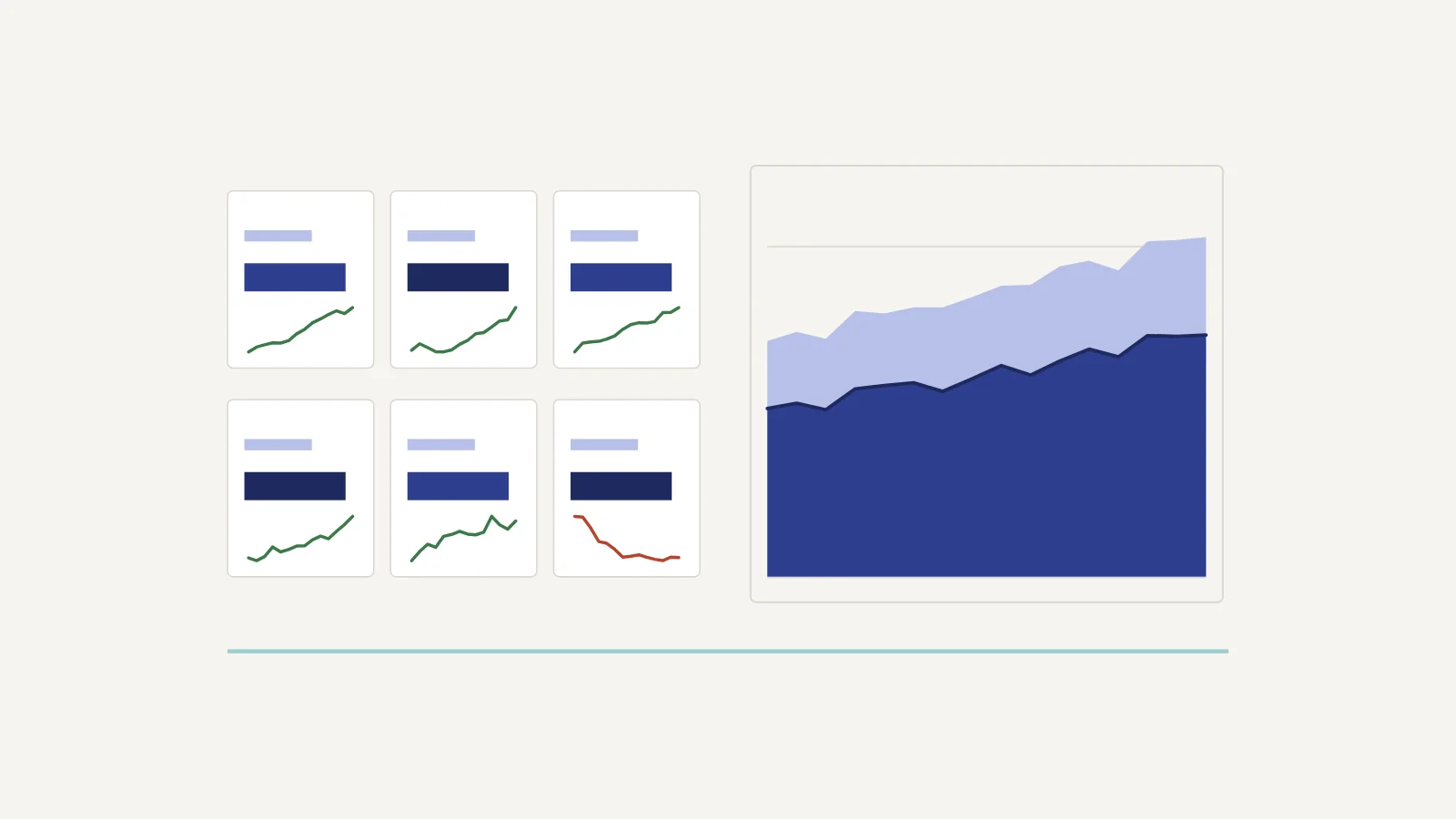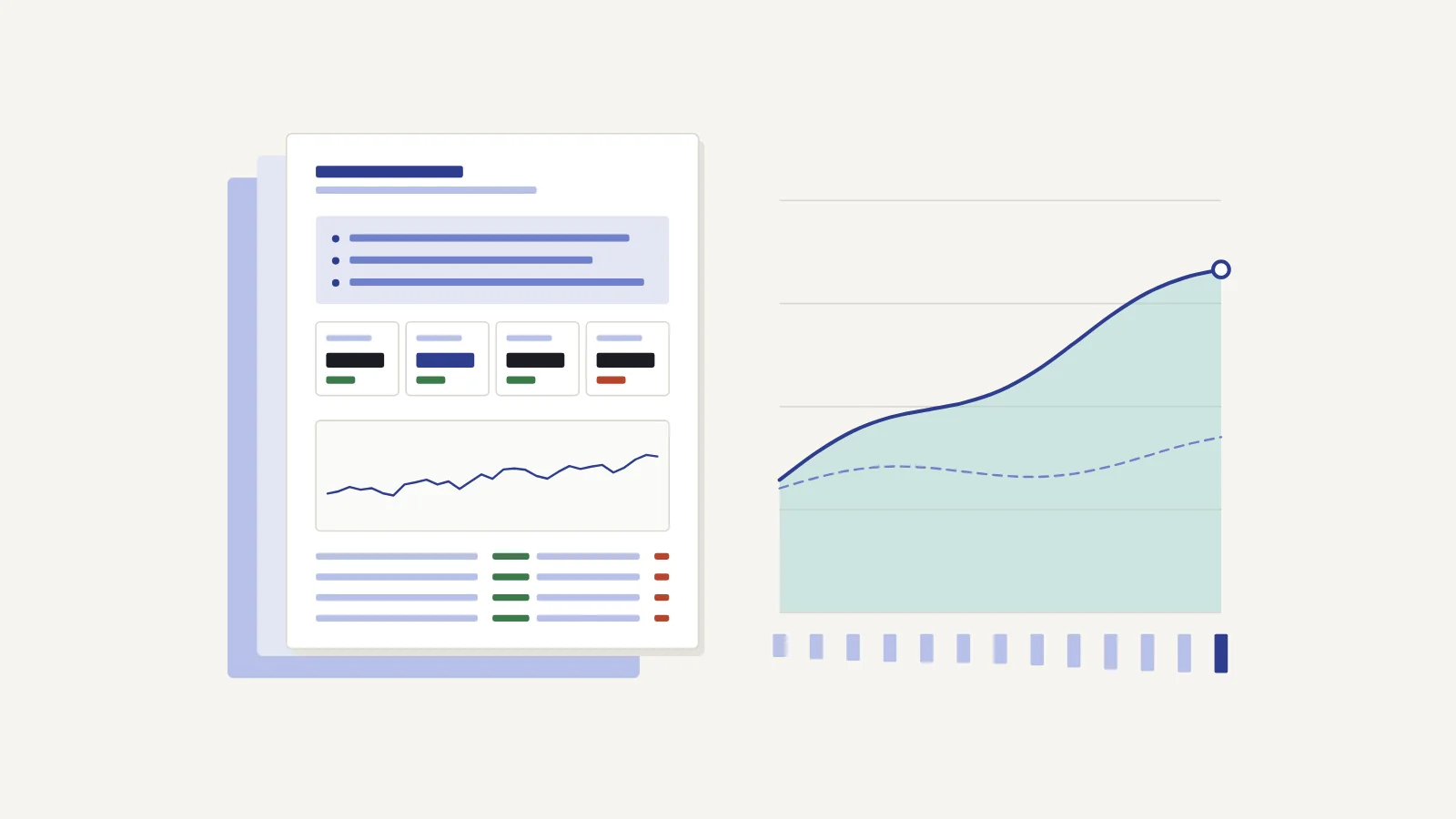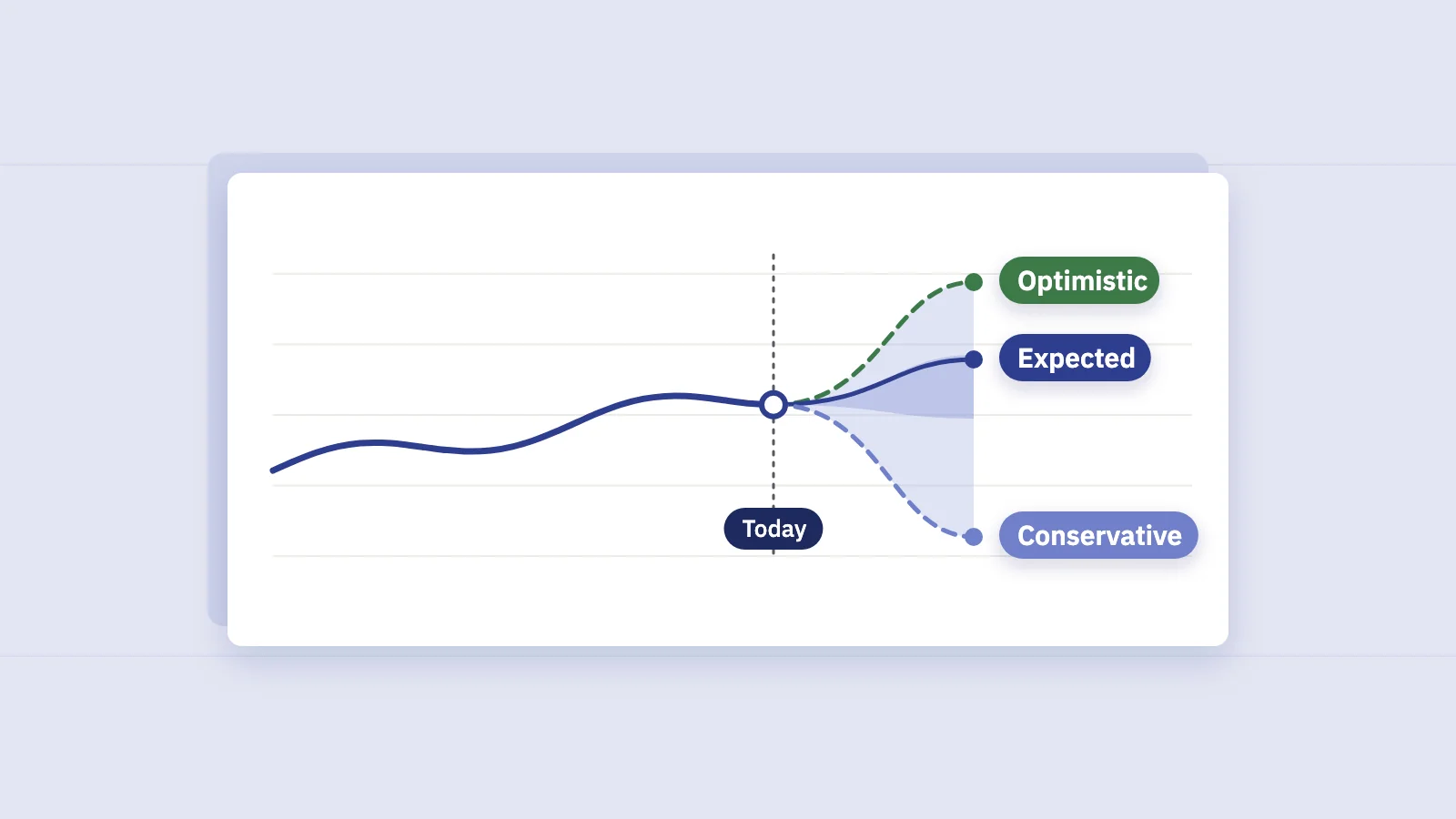
SEO monitoring is the continuous part of SEO: a few signals watched every day, a few more every week, and trends once a month, with alerts that tell you when to look. It is different from an audit, which is a periodic, top-to-bottom review of the whole site.
Monitoring is not an audit
An audit is a project. Once or twice a year, or once a quarter on a large site, you crawl everything, review templates, links and content, and come out with a list of fixes. We cover how often to do that in How often should you do an SEO audit?
Monitoring runs all the time and asks a narrower question: did something change that needs a person now? It doesn't find every problem. It finds the expensive ones early: the release that added noindex to a template, the server that returned errors all weekend, the money page that dropped from position 2 to 8.
A good monitoring setup has three properties:
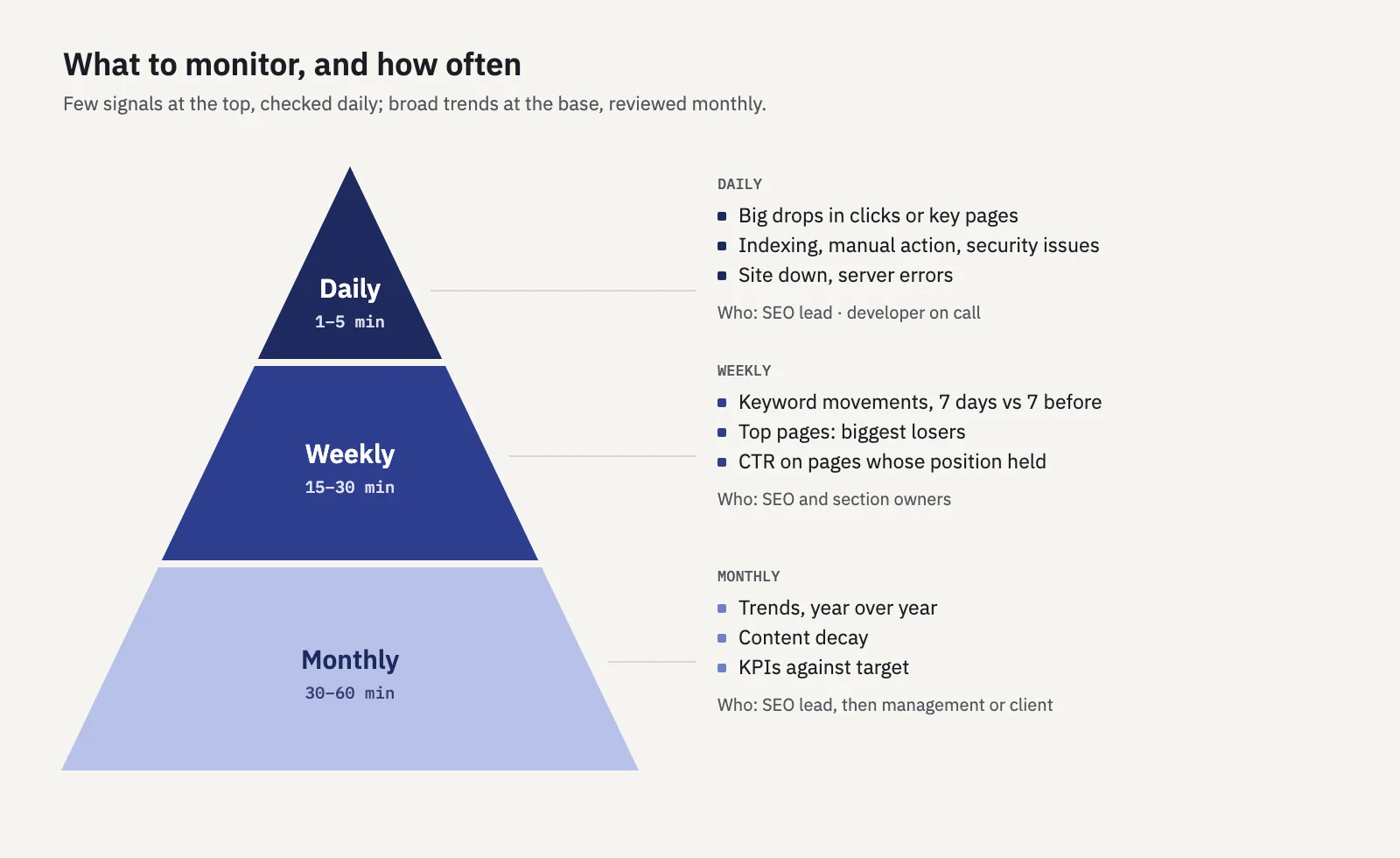
- Few signals at the top. The daily layer has three or four checks, not thirty. Everything else can wait for the weekly or monthly review.
- Thresholds that ignore noise. An alert that fires every day gets muted within a month.
- A named owner per alert. If an alert has no owner, nobody acts on it.
What to check daily
Daily checks are for things that cost traffic every day they go unnoticed. Most days the answer is "nothing happened", and that should take a minute.
Big drops. Site clicks against the same days a week earlier, and a short list of your most valuable pages or keywords. Not every dip: only a fall large enough that it is unlikely to be normal variance (see the thresholds below).
Indexing errors. A spike in pages excluded by noindex, 404s or server errors in Indexing > Pages, usually right after a release. Search Console emails you when it finds new issues on your site; check that those emails reach someone who is still on the team. Manual actions and security issues belong in this layer too: rare, but expensive every day they stay open.
Site down. Search Console is not an uptime monitor. It reports crawl problems after the fact: Settings > Crawl stats shows host status for robots.txt fetching, DNS and server connectivity over the past 90 days. For "the site is down right now", use an uptime check that requests your key URLs every few minutes and pages the developer on call.
What to check weekly
The weekly review is where you look at movement, not breakage. Give it 15 to 30 minutes, on the same day each week.
Keyword movements. Your tracked keywords, last 7 days against the 7 before: which ones gained and lost positions, and which of the losses cost clicks. A keyword moving from 45 to 48 doesn't matter; one moving from 2 to 4 on a busy query does. Our guide to tracking keyword rankings covers how to set up the list.
Top pages. The pages that bring most of your clicks, week over week. Look at the biggest losers in the Pages tab of Performance > Search results with Compare set to the previous period.
CTR. A page whose position held but whose CTR fell often has a new result feature above it, or a title that Google rewrote. Check the queries for that page. Our post on what a good CTR is explains why you compare a page with its own past, not with an industry average.
Weekly numbers are noisy, so the weekly review is for spotting candidates, not drawing conclusions. A page that is down two weeks in a row is worth a look; a page down once probably isn't.
What to check monthly
Once a month, step back and look at trends that daily and weekly views hide.
Trends. The last 3 months against the same 3 months a year ago. Year over year removes seasonality, which week over week can't.
Content decay. Pages that lose a little every month never trigger a weekly alert. You only see them in a longer window. The content decay guide has a method and thresholds.
KPIs. Clicks, non-branded clicks, visibility on your tracked keywords and conversions from organic search, compared with the target. These go to the people who don't look at daily alerts. See SEO KPIs for which ones to pick.
| Cadence | What | Where | Time | Owner |
|---|---|---|---|---|
| Daily | Big drops in clicks or key pages | Alerts, or Performance with Compare | 1–5 min | SEO lead |
| Daily | Indexing, manual action and security issues | Search Console emails, Indexing > Pages | 1–5 min | SEO lead and developer |
| Daily | Site down, server errors | Uptime check; Crawl stats afterwards | Automatic | Developer on call |
| Weekly | Keyword movements | Rank tracking, 7 days vs the 7 before | 10 min | SEO / content owner |
| Weekly | Top pages and CTR | Performance > Pages, Compare | 10–20 min | SEO / content owner |
| Monthly | Trends, decay, KPIs | Year-over-year comparison, report | 30–60 min | SEO lead, then management |
Search Console's data delay and what it does to alerts
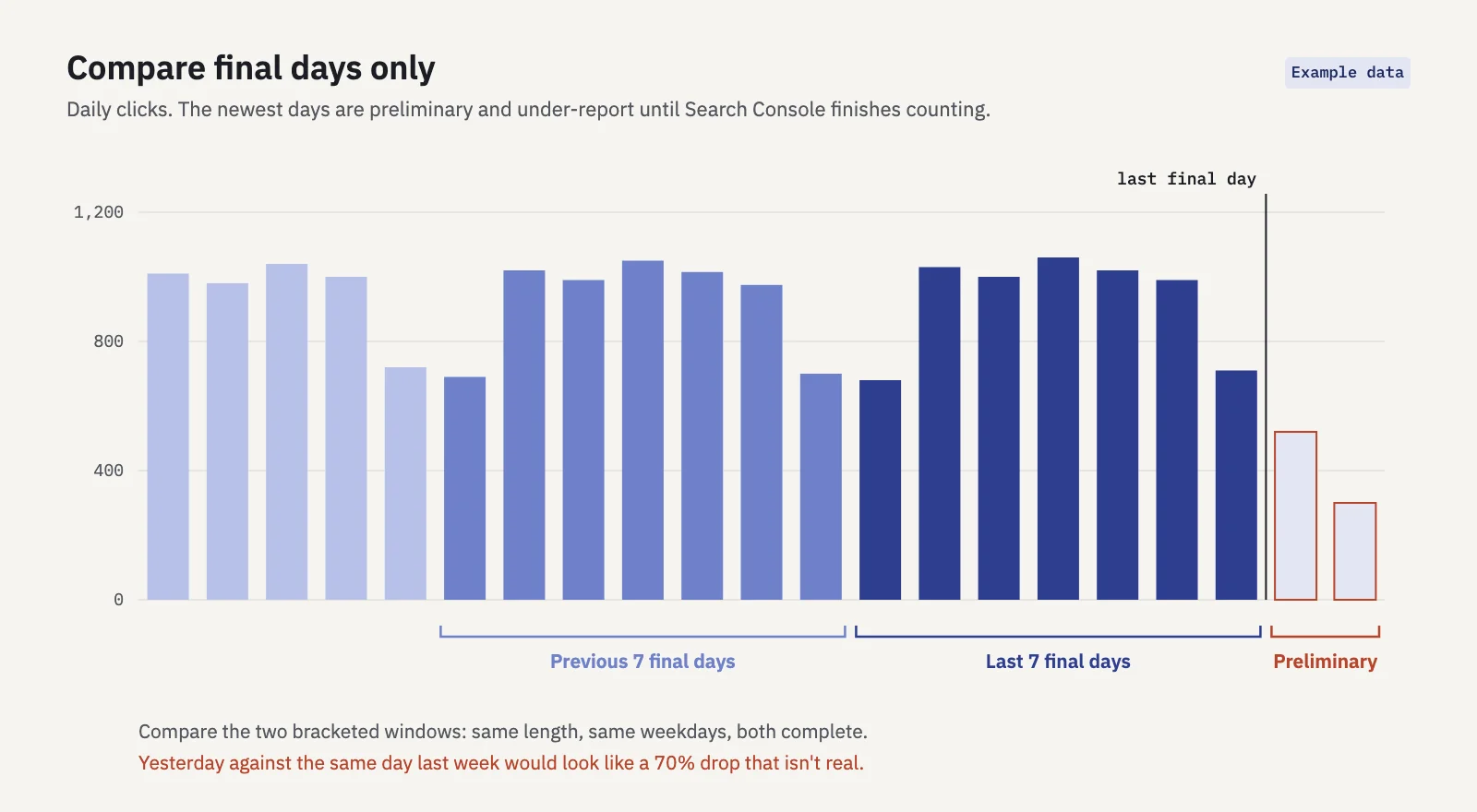
Search Console data is not real time, and its newest days are not final. The Performance report marks the newest data as preliminary: it is "still being collected and might change", and the chart draws it as a dotted line (Google's help). The 24-hour view shows hourly data with a delay of only a few hours, but those hours are preliminary too.
The API states it explicitly. With dataState set to final (the default) you get only finalized data; with all you also get fresh data, and the response carries a first_incomplete_date, after which "all values may still change noticeably" (API reference).
Three consequences for alerting:
- Never compare incomplete days with complete ones. Yesterday will always look like a drop against last week's yesterday, because it hasn't finished counting. An alert built on it fires every morning.
- End both windows on the last final day. Compare the last 7 final days with the 7 before them. That also keeps the same mix of weekdays in both windows, which matters on sites with strong weekday or weekend patterns.
- Accept the lag. Search Console alerts tell you about a problem one to a few days after it started. For problems that can't wait that long, such as the site being down, use a check that doesn't depend on Search Console.
Alert thresholds that avoid noise
Most alert fatigue comes from thresholds that ignore volume. A page that goes from 4 clicks to 2 has dropped 50%, and it doesn't matter. Some rules that keep alerts useful:
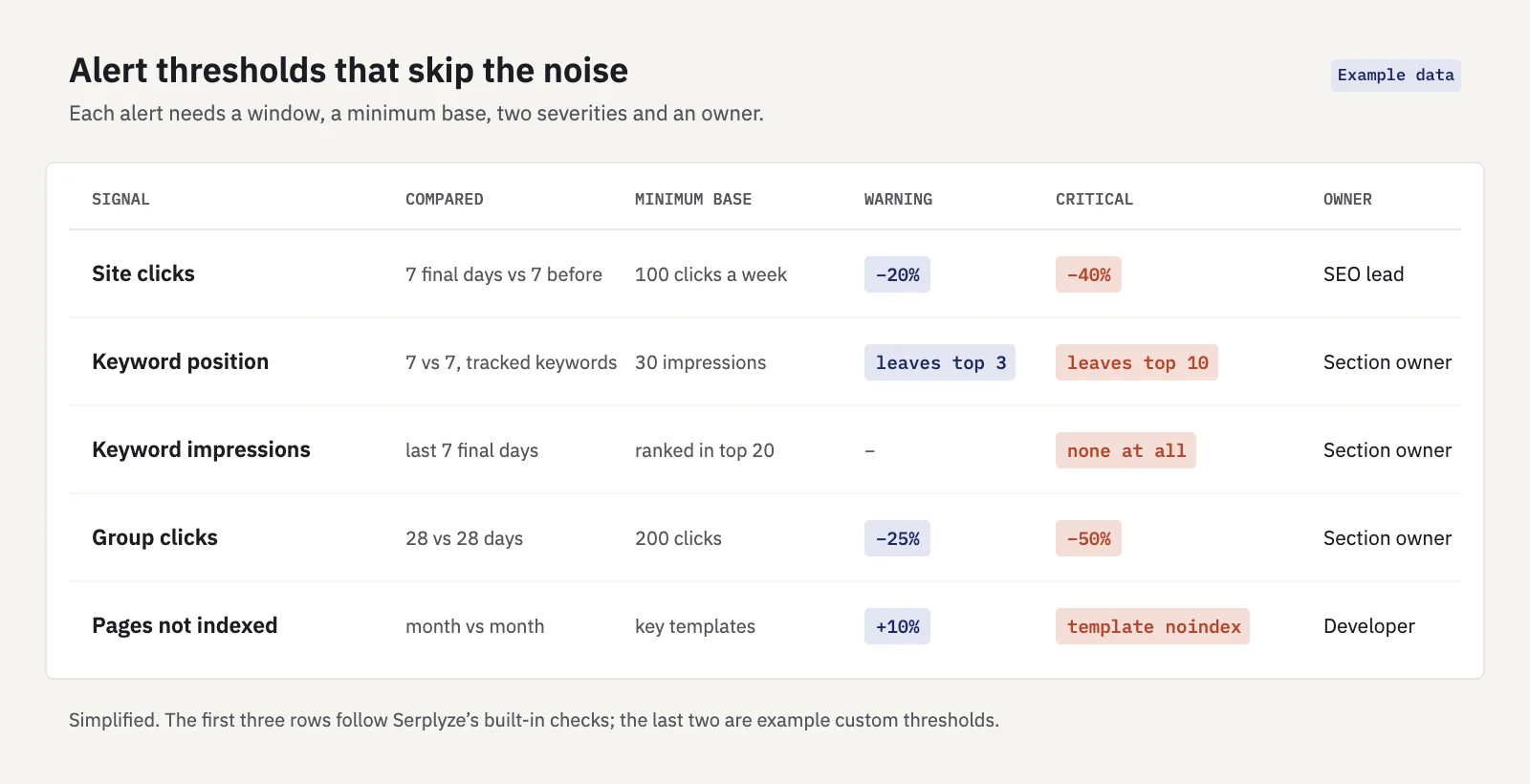
- Set a minimum base. Only alert on a percentage change when the earlier window had enough volume, for example 100 clicks a week for the whole site, or a few dozen impressions for a keyword.
- Weight by impact, not by positions. A fall from 2 to 4 on a busy query costs more clicks than 15 to 25 on a rare one. Use expected clicks lost, or whether the keyword left the top 3 or the top 10.
- Use two severities. A warning goes into the daily digest; a critical alert goes to someone's inbox. If everything is critical, nothing is.
- Require persistence where the data is jumpy. A ranking URL that changes for one day is normal; one that stays changed for two or three days isn't.
- Don't alert on history. When you first connect a site, months of past data arrive at once. Alerts on that history are noise; start from the first new day.
- One message per project per day. Group alerts into a digest instead of sending one email per keyword.
Start strict and loosen. If an alert type fires more than a couple of times a week without anyone acting on it, raise the threshold or move it to the weekly review.
Who should get which alert
An alert should go to the person who can fix the cause, and only to them first.
| Alert | First recipient | Then |
|---|---|---|
| Site down, server errors | Developer on call | SEO lead, if it lasted long enough for Google to notice |
| Manual action, security issue | SEO lead and site owner | Developer, legal or security as needed |
| Indexing errors after a release | Developer who shipped it | SEO lead |
| Site-wide traffic drop | SEO lead | Management, once the cause is known |
| Keyword or page drops in one section | The owner of that section | SEO lead in the weekly review |
| Monthly KPIs | Management or the client | As a report, not an alert |
Two practical points. Route alerts by section where you can: the person who owns the blog should see blog drops, not checkout drops. And keep clients and executives on reports, not on raw alerts; a client who gets every rank-drop email will ask about every one.
SEO monitoring in Serplyze
Serplyze is built on your own Search Console data, so it monitors the performance side: clicks, impressions, positions and ranking URLs. It does not check uptime or Search Console's indexing, security or manual action reports; keep Search Console's emails and an uptime check for those.
After each daily sync, Serplyze runs three checks on the last 7 final days against the 7 before. History imported when you first connect a property doesn't raise alerts.
- Traffic drop: site clicks fell 20% or more (40% or more is critical), when the earlier week had at least 100 clicks.
- Rank drop: a tracked keyword with meaningful impressions fell and it costs clicks. It is a warning when the keyword leaves the top 3, loses about 5 or more expected clicks a week, or falls 3 or more positions within the top 20. It is critical when it leaves the top 10 or loses about 25 or more expected clicks a week.
- Lost impressions: a keyword that ranked in the top 20 had no impressions at all in the last 7 days.
You can add your own rules on a keyword or a keyword group: position falls by N or leaves the top N, clicks or impressions fall by a percentage, or visibility falls by points or a percentage, over 7, 14 or 28 days against the period before. Ranking URL rules alert when a keyword ranks with a URL other than its target, or with a new URL, for a number of days in a row.
Alert emails go out at most once per project a day. Each member chooses which emails they get per workspace and per project, members only get email about projects they can access, and client accounts get scheduled reports instead of alerts. A weekly summary goes out on Mondays with the week's clicks, impressions, visibility and top winners and losers.
Key takeaways
- Monitoring is continuous and narrow; an audit is periodic and complete. Run both.
- Daily: big drops, indexing errors, site down. Weekly: keyword movements, top pages, CTR. Monthly: trends, content decay, KPIs.
- Search Console's newest days are preliminary. Compare final days only, in equal 7-day windows, and use an uptime check for anything that can't wait.
- Avoid noise with a minimum base, impact-weighted thresholds, two severities and one digest a day.
- Send each alert to the person who can fix it, and keep clients and executives on reports.
Serplyze checks your Search Console data after every daily sync and emails you when clicks or rankings drop. Start free and set your first alert rules.