
A website migration is any change that moves pages to new URLs or new infrastructure, and it's one of the few routine projects that can cut search traffic in a day. This checklist covers what to export before the move, what to do on launch day, and what to check in Search Console over the eight weeks after it.
The four kinds of migration
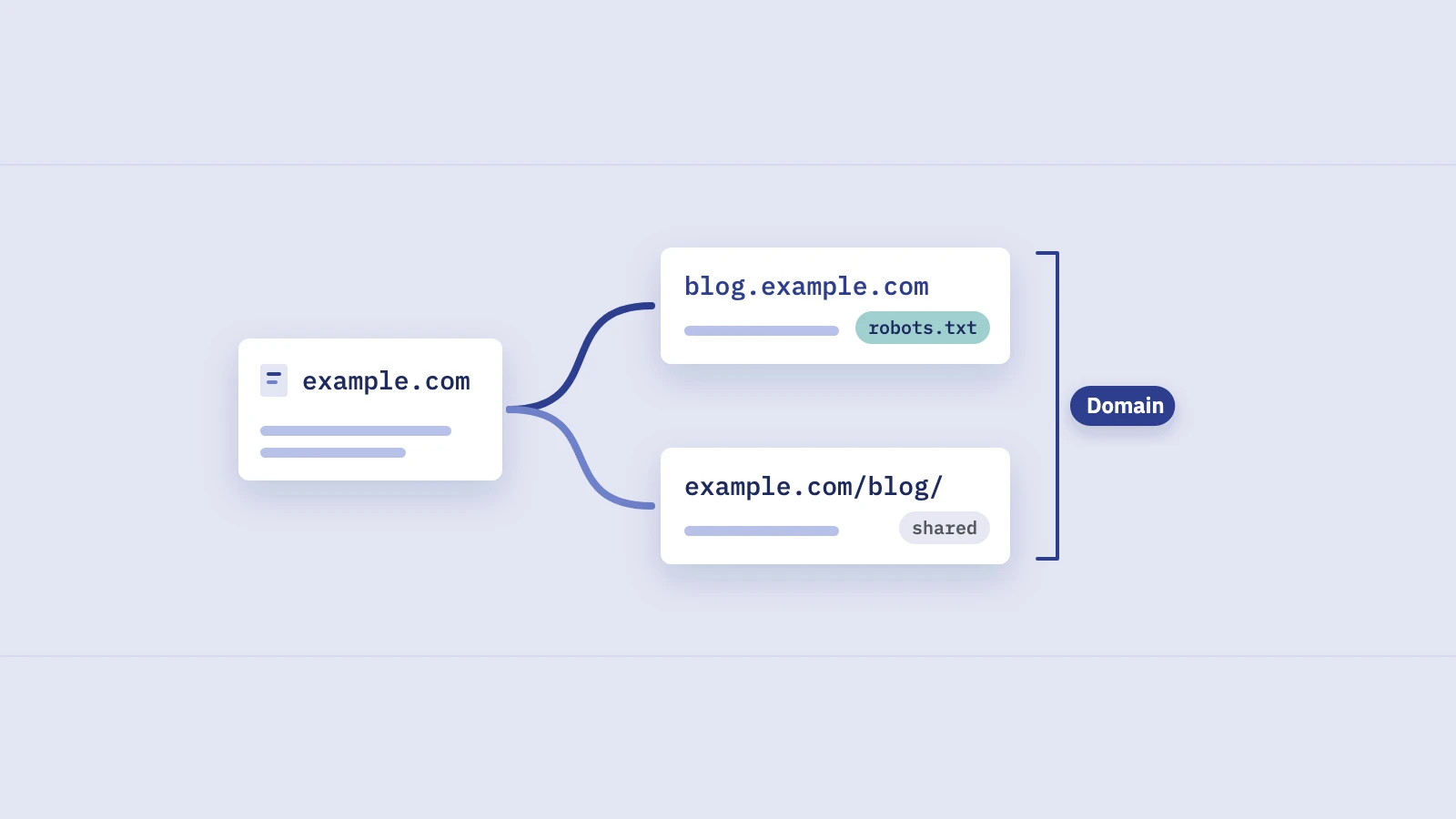
"Migration" covers changes with very different risk. Google splits them into two guides: moving a site with URL changes and changing your hosting, where visitors see the same URLs as before.
| Migration type | Example | URLs change? | Change of Address tool? |
|---|---|---|---|
| Domain move | example.com to example.org, or shop.example.com to example.com | Yes, every URL | Yes |
| HTTP to HTTPS | http://example.com to https://example.com | Yes, the protocol | No, Google detects it |
| URL structure | /blog/post-name to /articles/post-name | Yes, some or all paths | No |
| Platform or hosting | New CMS or CDN, same URLs | No | No |
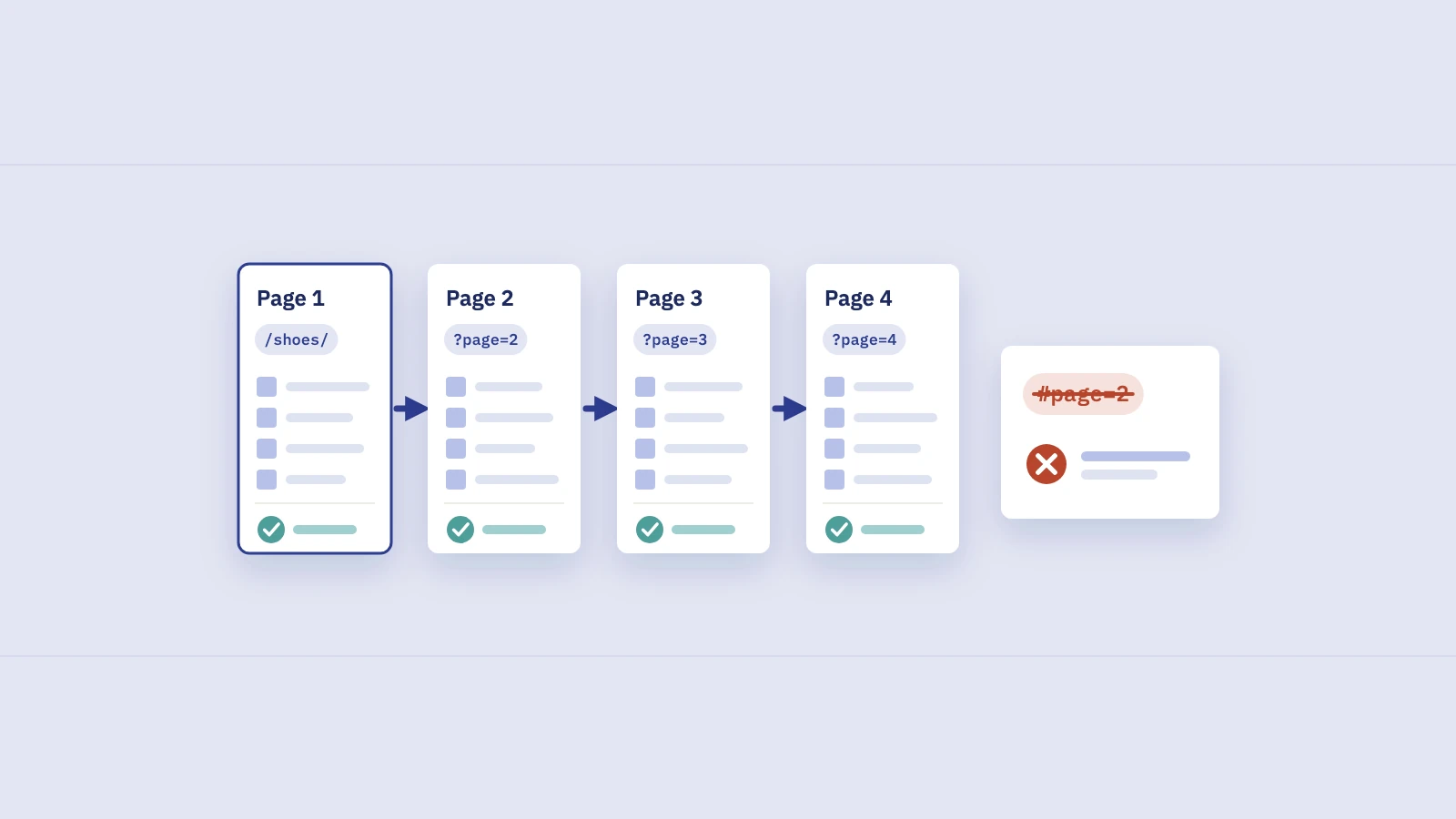
A platform migration rarely keeps every URL: new CMSes tend to change slugs, trailing slashes and pagination. If any visible URL changes, treat it as a move with URL changes.
Take Google's advice on scope literally: don't combine a URL move with a redesign or new CMS. The Change of Address documentation says that combining a move with a restructure "will likely cause traffic loss." Phase them so you can tell which change caused a drop.
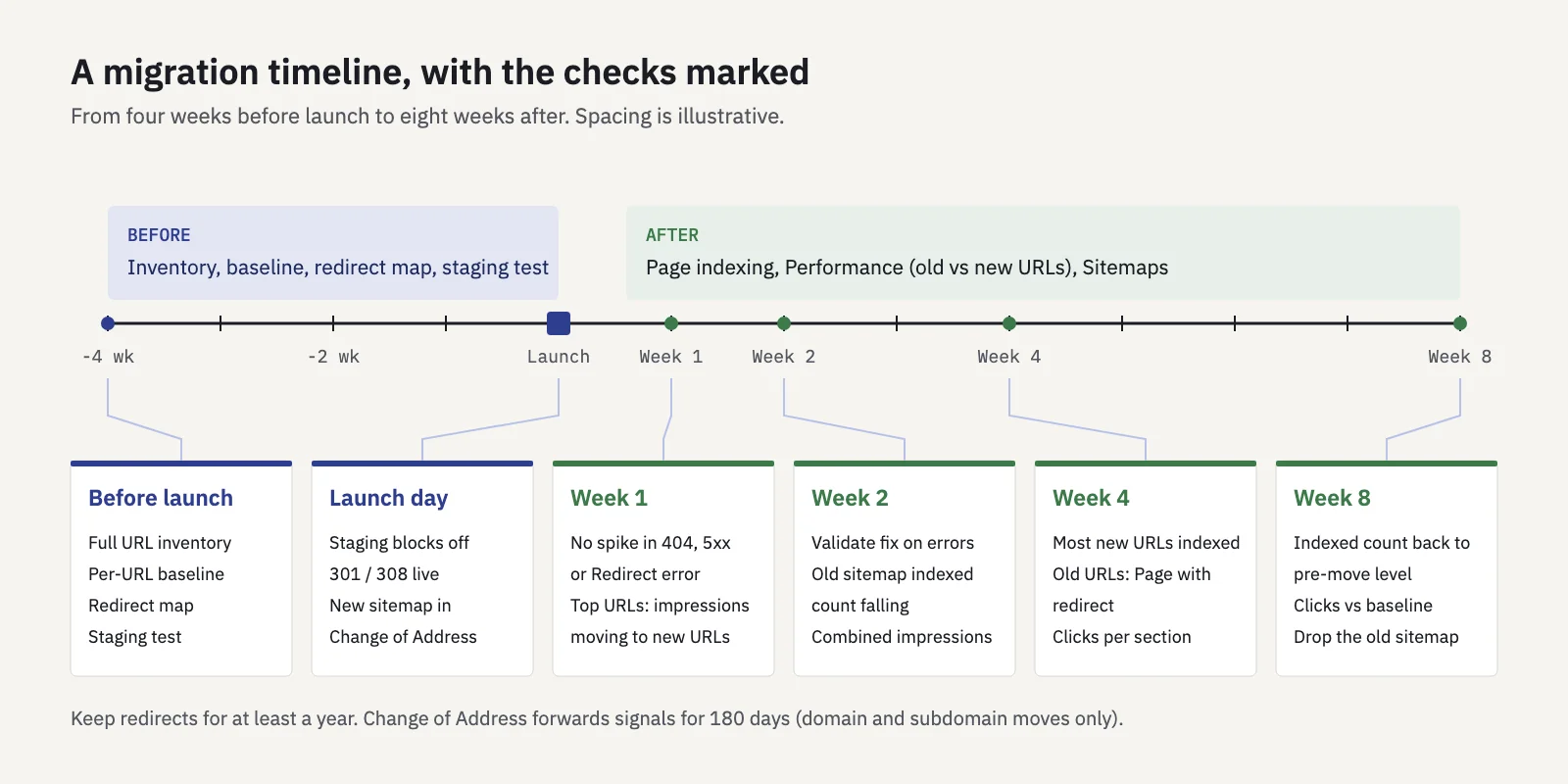
Before the move: inventory, baseline and redirect map
1. Build a URL inventory
List every URL that exists on the old site, not just the ones in the current sitemap. Google suggests pulling them from your sitemaps, server logs, analytics, Search Console's links report and the CMS, and including images, videos, JavaScript and CSS files. Our guide to finding every page on a website walks through the sources and how to merge them.
2. Export a performance baseline
Before anything changes, export what each URL earns from search. In Search Console, open Performance > Search results, set the date range to the last 3 months (and the last 16 months if the site is seasonal), and export the Pages tab. Note the export limit: the UI exports at most 1,000 rows, so a large site needs the Search Console API, BigQuery bulk export or a tool that pulls the API for you.
Keep three things from the baseline:
- Clicks and impressions per URL. This ranks your redirect map by value: the top few hundred URLs get checked by hand.
- Top queries for the top pages. After the move you'll check that the same queries land on the new URLs.
- Indexed page count. Take a screenshot of Indexing > Pages filtered to All submitted pages, so you know the number to get back to.
3. Write the redirect map
The redirect map is a two-column table: every old URL and the single new URL it should redirect to. Rules that keep it clean:
- One hop. Each old URL points straight at its final destination, never at a URL that redirects again. See 301 redirects for why chains cost you.
- Like for like. Send each page to its closest equivalent. Google warns against redirecting many old URLs to an irrelevant page such as the homepage. Merging several old pages into one new page is fine.
- 404 or 410 for content you're dropping, rather than a redirect to something unrelated.
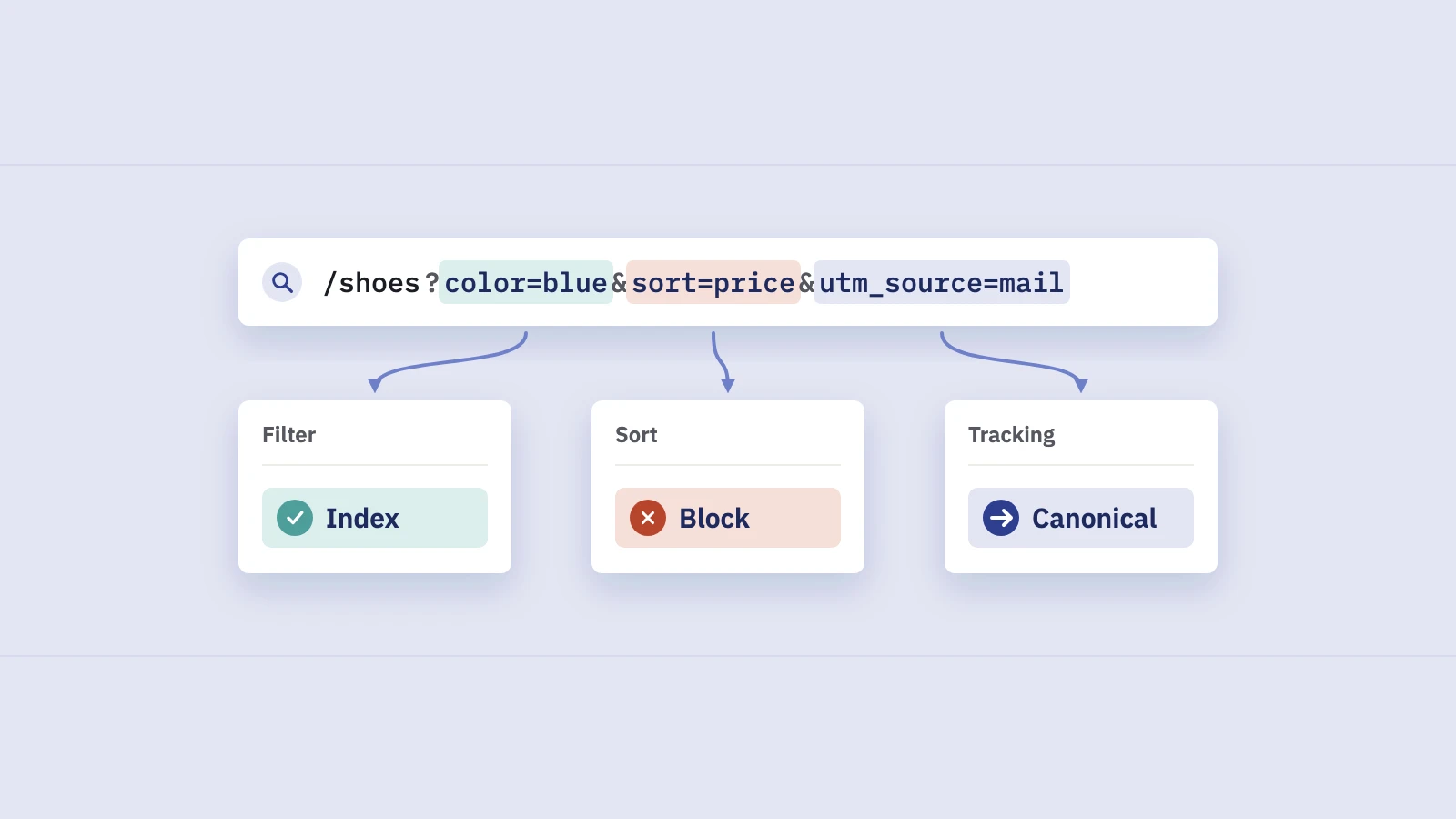
- Include the odd URLs: old campaign landing pages, PDFs, image URLs, URLs with parameters that earn links.
4. Prepare and test the new site
Verify the new site in Search Console before launch, with every variant (www and non-www, HTTP and HTTPS) unless you use a Domain property, which covers them all. On staging, check that each new URL has a self-referencing canonical, that internal links and hreflang point to new URLs, and that the new XML sitemap lists only new URLs. Then make a note of the staging noindex and robots.txt rules, because they must be gone at launch.
Launch day: redirects, sitemaps and the Change of Address tool
The order matters. Redirects go live first, Search Console comes after.
- Remove staging blocks. Delete the noindex tags and robots.txt disallow rules used on staging. A leftover noindex can take the whole new site out of search.
- Switch on the redirects as server-side permanent redirects (301 or 308), which is what Google's site move guide recommends.
- Spot-check the top URLs from your baseline: each should return one 301 to the right new URL, and the new URL should return 200.
- Submit the new sitemap in Indexing > Sitemaps of the new property. Keeping the old sitemap submitted for a while helps too: Google says you can watch the old sitemap's indexed count fall as the new one rises.
- For a domain move, run the Change of Address tool (next section).
- Update links you control elsewhere: social profiles, your other sites, ads and email templates.
Using the Change of Address tool
The Change of Address tool tells Google that a whole domain or subdomain has moved. Use it only for domain and subdomain moves. Google says not to use it for HTTP to HTTPS (detected automatically), for www to non-www on the same domain, or for moving some pages within a site.
- Check the prerequisites. Your Google account must be an owner of both the old and the new property. The old site's homepage, and ideally its other canonical pages, must 301 to the new site.
- Open the old property in Search Console. It has to be a domain-level property, not a URL-prefix property with a path.
- Go to Settings and click Change of address.
- Pick the new site from the list of properties you own and let the tool run its checks. It confirms ownership and tests that a few pages redirect. Failed critical checks block the request until you fix them.
- Submit, and repeat for each variant of the old domain. The tool doesn't move subdomains below the domain, www included, so each verified variant needs its own request.
Google forwards signals and favors the new site for 180 days after you submit. Keep the redirects for at least that long, and Google's site move guide recommends keeping them generally for at least a year; keep the old domain registered for at least a year as well.
After the move: a Search Console monitoring checklist
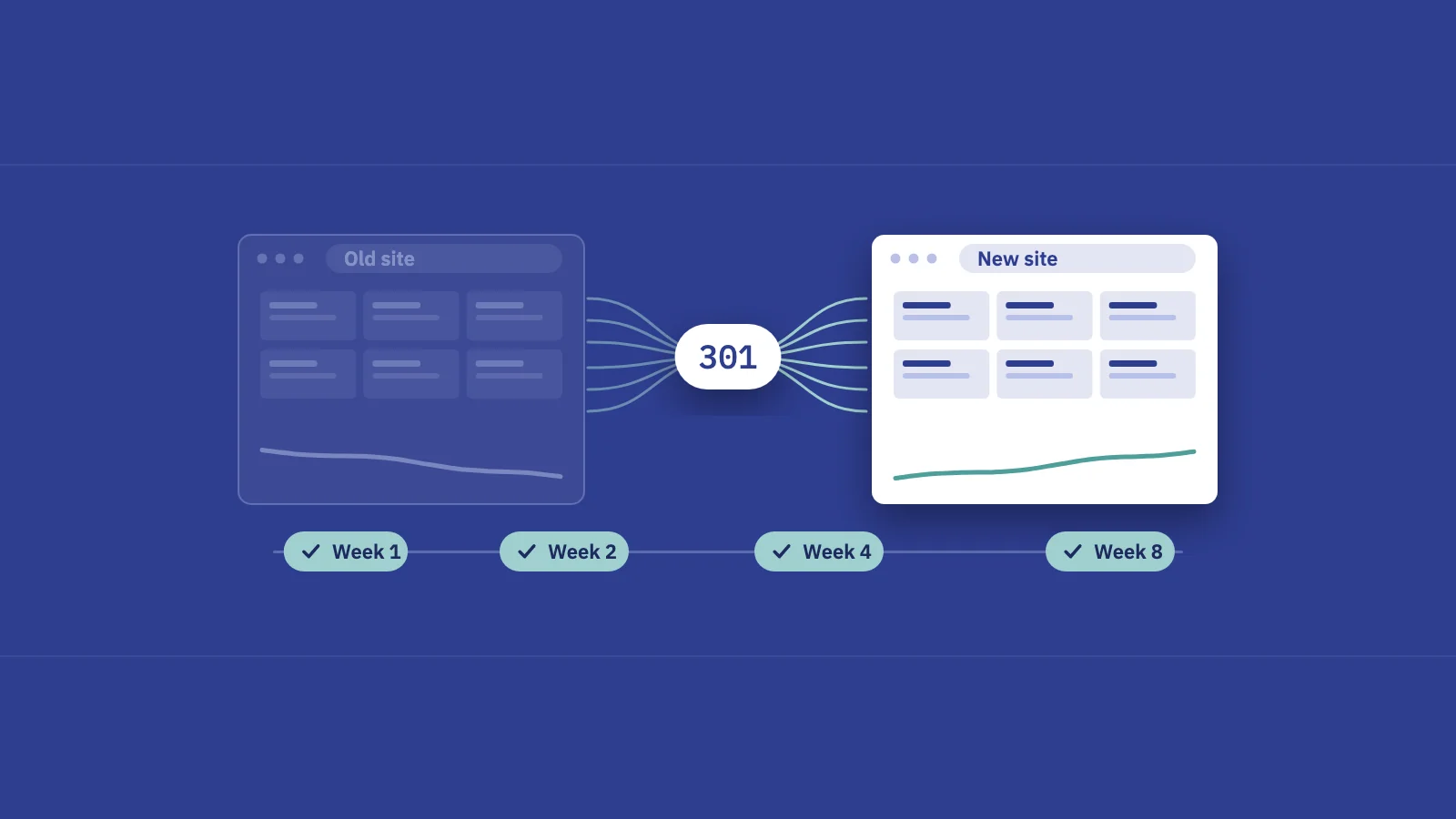
Google says that for a medium-sized site it can take "a few weeks or more" for most new URLs to show in search, longer for large sites, and that rankings may fluctuate while it recrawls. Check on a fixed schedule rather than refreshing the report daily.
| When | Page indexing | Performance | Sitemaps |
|---|---|---|---|
| Week 1 | New property: indexed count starts to rise. Old property: Page with redirect grows. No spike in Not found (404), Redirect error or Server error (5xx) | Top 50 baseline URLs: impressions start moving to the new URLs | New sitemap read with no errors |
| Week 2 | Run Validate fix on any new error reason. Check Duplicate, Google chose different canonical than user on new URLs | Total impressions old plus new near the baseline, allowing for normal weekly swing | Old sitemap's indexed count falling, new one rising |
| Week 4 | Most submitted new URLs indexed. Old URLs mostly Page with redirect | Clicks per section vs baseline. Queries from the baseline land on new URLs | Remaining gaps: new URLs that are submitted but not indexed |
| Week 8 | Indexed count close to the pre-move number | Clicks vs the same weeks before the move, and vs last year if seasonal | Remove the old sitemap once its indexed count is near zero |
Page indexing: old site and new site
On the old property, a healthy move looks boring: URLs shift from indexed to Page with redirect, which Google defines as a non-canonical URL that redirects and won't be indexed itself. On the new property, the indexed count climbs. The statuses that need action are Redirect error (chains that are too long, loops, bad URLs in the chain), a jump in Not found (404) for URLs that should have redirected, and Server error (5xx) if the new server can't cope with the extra crawling Google warns to expect. For what each status means, see indexing in SEO.
Use URL Inspection on a handful of important old URLs too. An old URL should be reported as not indexed because of the redirect, and the new URL should be indexed with itself as the Google-selected canonical.
Performance by old vs new URLs
For a domain move, compare the two properties side by side: the old one falling, the new one rising, and the sum of the two against your baseline. For a URL structure change on the same domain, use + Add filter > Page with Custom (regex) in Performance > Search results to split old paths from new ones, for example ^https://example\.com/blog/ vs ^https://example\.com/articles/. The Search Console regex guide has more patterns.
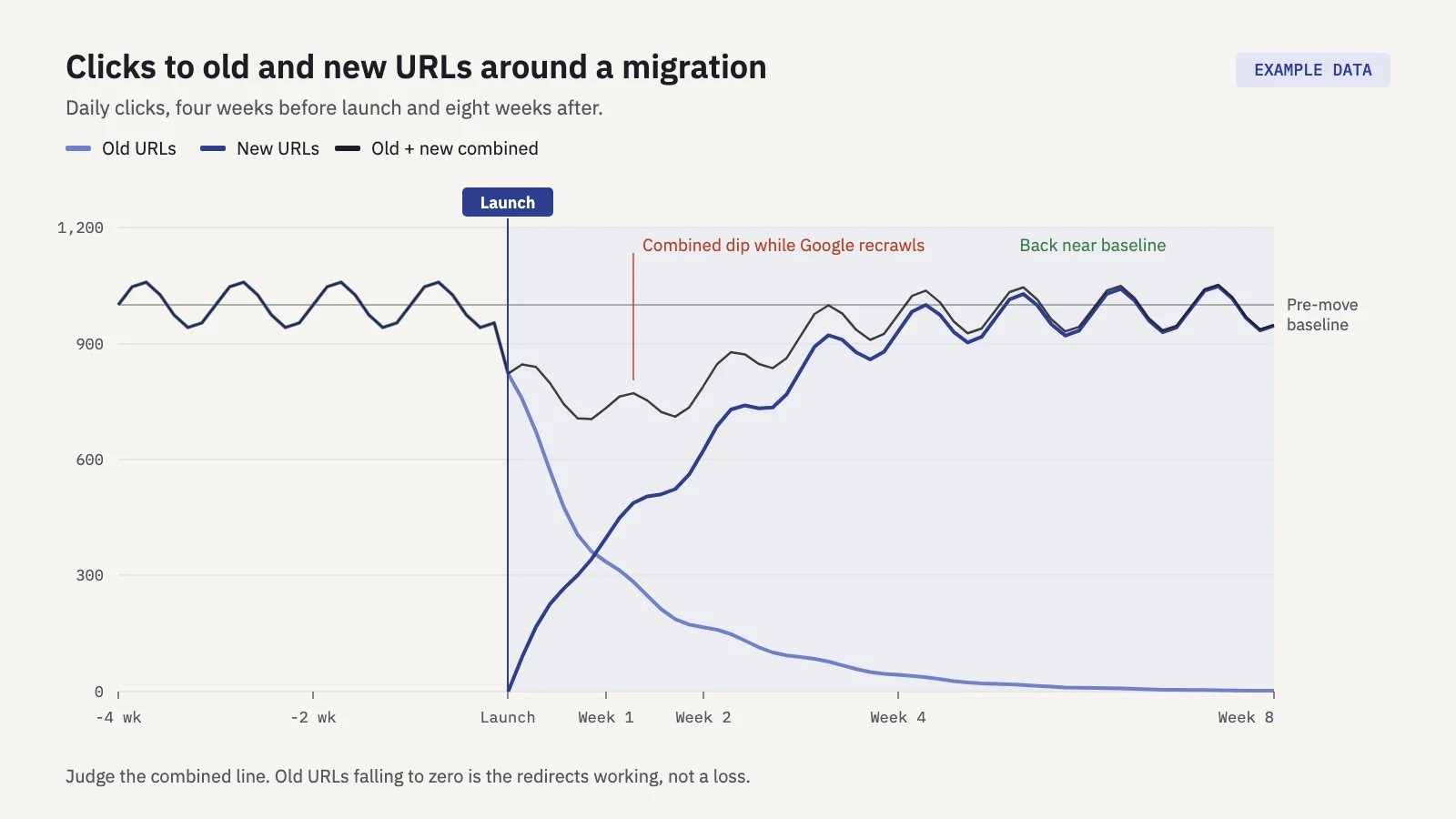
Example data. The combined line is the one to judge; the old and new lines will always cross.
The weekly question is not "did the old URLs lose traffic?" (they should) but "did the combined total come back?" Say a page's old URL lost 500 clicks and its new URL gained 50: look for a wrong redirect target or content that changed in the move.
In Serplyze (paid plans), log the launch as an action with the type Technical under Actions, targeting the migrated pages (up to 20) or, for a move within one domain, a page group whose rules match both the old and new paths. Serplyze then compares 28 days before the launch with 28 days starting a week after it, sets the result against the whole site's trend, and draws the launch as a marker on the project's charts. On Traffic > Pages, the Lost and New quick views list URLs that had impressions in the comparison period and none now, and the reverse. See Actions and impact.
Common failures and rollback signals
Most migration problems fall into a short list:
- A noindex or robots.txt block carried over from staging. Symptom: the new property's indexed count stays flat and URL Inspection reports the page as blocked.
- Redirects to the homepage or a category page instead of the equivalent page. Google's site move guide warns this "might be treated as a soft 404 error."
- Redirect chains from an earlier migration: old URL to the HTTP version of the new URL to the HTTPS version. Flatten them in the map.
- Canonicals still pointing at old URLs, so Google gets conflicting signals and may keep old URLs as canonical.
- Internal links left on old URLs. Every click through the site hits a redirect, and Google keeps crawling the old URLs.
- Missing URLs: pages that earned traffic or links but weren't in the inventory, now returning 404.
Rolling back is rarely right: most of these issues are fixed forward, and a reversal makes Google process a second move. Consider it only when the new site is broken at a level you can't fix within days: the new property's indexed count isn't rising after several weeks, large parts of the site return errors, or the combined clicks are well below baseline and still falling at week 4 with no fixable cause found. For a domain move, Google documents how to cancel a Change of Address within 180 days: remove the redirects from the old site, redirect the new site back to the old one, and click Cancel Move in the tool on the old property.
Rule out other causes first: a core update in the same weeks can look like a migration problem, and a regular SEO monitoring routine tells you what normal weekly swing looks like.
Key takeaways
- Treat any change to visible URLs as a migration, and avoid combining a move with a redesign or new CMS.
- Before launch, build a full URL inventory, export a per-URL baseline from Search Console and map each old URL to one equivalent new URL.
- Launch with server-side 301 or 308 redirects, remove staging blocks, submit the new sitemap, and run Change of Address only for domain and subdomain moves.
- Check Page indexing, Performance (old vs new URLs) and sitemaps at weeks 1, 2, 4 and 8, and judge the combined total, not the old URLs alone.
- Keep redirects for at least a year; fix forward in most cases and roll back only when the new site is broken in ways you can't fix quickly.
Serplyze reads your own Search Console data, keeps the before and after in one place, and measures a launch against the rest of the site. Start free before your next migration so the baseline is already there.