Image SEO is mostly about two things: letting Google find and understand your images, and then reading the traffic they earn in the right place. Google's own guidance covers the first part. Search Console covers the second, but it splits image traffic across search types and reports, so it's easy to look in the wrong one.
How Google finds your images
Before an image can rank, Google has to discover it, crawl it and connect it to a page. Google's image SEO best practices set out a few rules that decide whether that happens at all.
- Use an
<img>element. Google finds images in thesrcattribute of<img>, including inside a<picture>element. The documentation is blunt: Google doesn't index CSS images. A product photo set as abackground-imageis invisible to Google Images. - Use a supported format. Google lists BMP, GIF, JPEG, PNG, WebP, SVG and AVIF, and asks that the file extension match the actual file type.
- Keep image URLs stable. If the same image is used on many pages, reference the same URL each time so Google can reuse what it has already crawled.
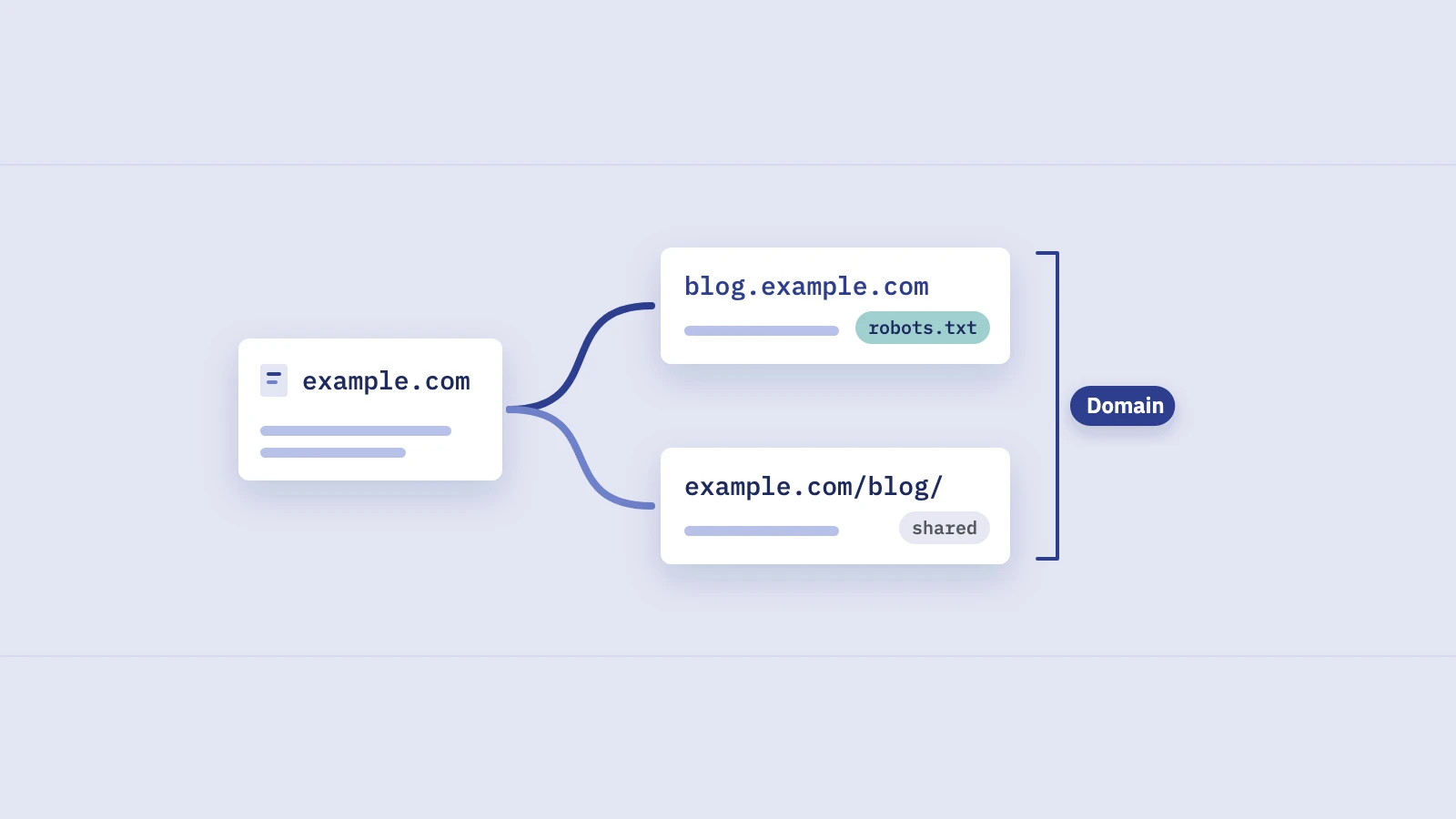
- Don't block the files. Images on a CDN or a separate host are still subject to that host's robots.txt. Our post on robots.txt vs noindex explains how blocking crawling differs from blocking indexing.
Image sitemaps
An image sitemap tells Google about images it might not find otherwise, such as images loaded by JavaScript. You can add image tags to your existing sitemap or keep a separate one; Google treats both the same. Each page's <url> entry wraps its images in <image:image> with the file URL in <image:loc>, up to 1,000 images per page:
<url>
  <loc>https://www.example.com/trail-shoes/</loc>
  <image:image>
    <image:loc>https://cdn.example.com/img/trail-shoe-blue-side.webp</image:loc>
  </image:image>
</url>
Image URLs can sit on another domain, such as a CDN, if you've verified that domain in Search Console. The old <image:caption>, <image:title>, <image:geo_location> and <image:license> tags have been removed from Google's documentation, so there's no need to add them.
Lazy loading done right
Lazy loading is fine for search as long as images load when they enter the viewport, not when someone scrolls or clicks. Google's lazy-loading guide says plainly that Google Search does not interact with your page. It recommends the browser's built-in lazy loading, the IntersectionObserver API, or a library that loads content on viewport entry.
The same guide warns against lazy-loading content that's likely visible when the page opens. In practice that means your hero image and the main product photo should load normally. To check what Google sees, run the page through URL Inspection and look at the rendered HTML: every image you care about should have its real URL in the src attribute, not a placeholder.
How Google understands what an image shows
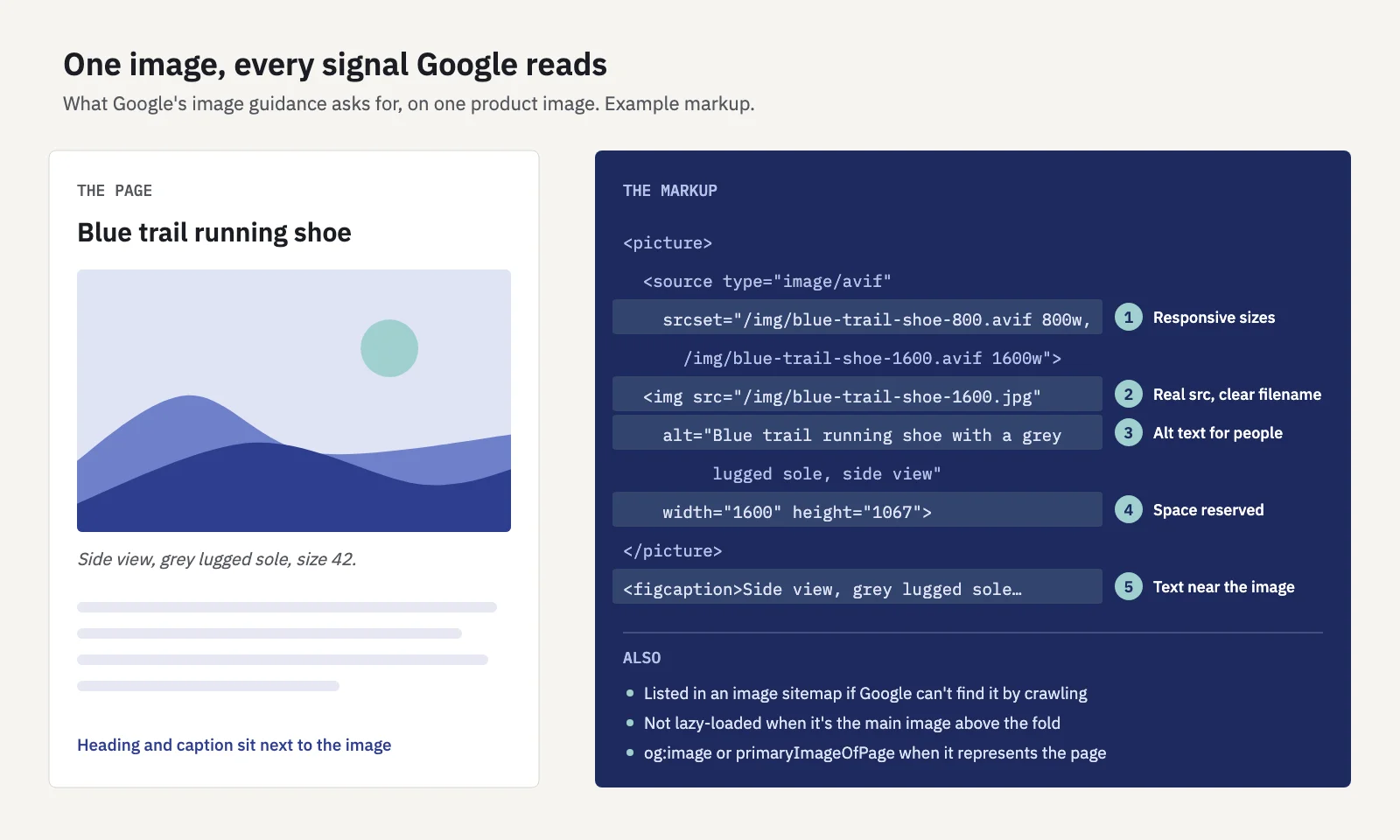
Once Google has an image, it needs context to decide which searches it fits. Google's best practices name the signals.
| Element | What Google's docs say | A common miss |
|---|---|---|
| Filename | Short and descriptive; translate it when you localize | Camera names like IMG_4817.jpg |
| Alt text | Useful, in context, no keyword stuffing | Empty alt on content images, or a list of keywords |
| Surrounding text | Put images near relevant text, captions and headings, on pages about the same subject | A gallery with no text at all |
| Page title and description | Google uses them for the result shown with the image | One generic title across a whole gallery |
| Responsive images | srcset or <picture>, always with an <img src> fallback |
srcset with no src for crawlers that ignore it |
| Inline SVG | Describe it with a <title> element |
Icon-only SVGs carrying the main content |
Alt text that helps
Alt text serves people using screen readers first, and Google reads it as a description of the image. Google's own example moves from missing alt text, through keyword-stuffed alt text, to a short phrase that says exactly what's in the picture. Write what you'd say if you were describing the image to someone over the phone:
<img src="/img/trail-shoe-blue-side.webp"
     alt="Blue trail running shoe with a grey lugged sole, side view"
     width="1200" height="800">
Decorative images, such as dividers and background flourishes, can keep an empty alt="" so screen readers skip them. Google also asks for sharp, high-quality images, because they stand out in thumbnails.
Structured data for images
Two kinds of markup touch images. First, many rich result types require an image property; Google's best practices say structured data can make images eligible for a badge and rich results in Google Images. Second, image metadata lets you state the creator, credit line, copyright notice and license. With a license URL (or the IPTC Web Statement of Rights field embedded in the file), an image can show the Licensable badge in Google Images. If structured data and embedded IPTC metadata disagree, Google uses the structured data.
To test and measure markup in general, see our guide to schema markup and rich results.
Choosing the image Google shows for the page
Google picks preview images for results and for Discover automatically, but you can influence the choice. Its best practices list two ways:
- schema.org markup: the
primaryImageOfPageproperty, or animageproperty on the page's main entity. - The
og:imagemeta tag.
Pick an image that's relevant and representative of the page. Google tells you to avoid site logos, images with text, extreme aspect ratios and low resolutions.
Discover has its own image recommendations: large images at least 1200 px wide, more than 300,000 total pixels, a 16x9 ratio where you can, and the max-image-preview:large robots setting so Google is allowed to show a large preview.
Speed and page experience
Images are often the heaviest part of a page, and Google's best practices ask you to optimize them with current compression and responsive techniques. Three habits cover most of it:
- Serve the right size. A
srcsetwith a few widths stops phones from downloading desktop-sized files. - Reserve space. Set
widthandheight(or a CSSaspect-ratio) so the layout doesn't jump when the image arrives. Google's web.dev guide to optimizing CLS names images without dimensions as a common cause of layout shift. - Don't delay the main image. The largest image in the viewport is often the page's LCP element. Lazy-loading it, or hiding it behind a script, slows the moment Google measures.
We cover the metrics, thresholds and how to prioritize fixes by template in Core Web Vitals in Search Console, so we won't repeat them here.
Where image traffic shows up in Search Console
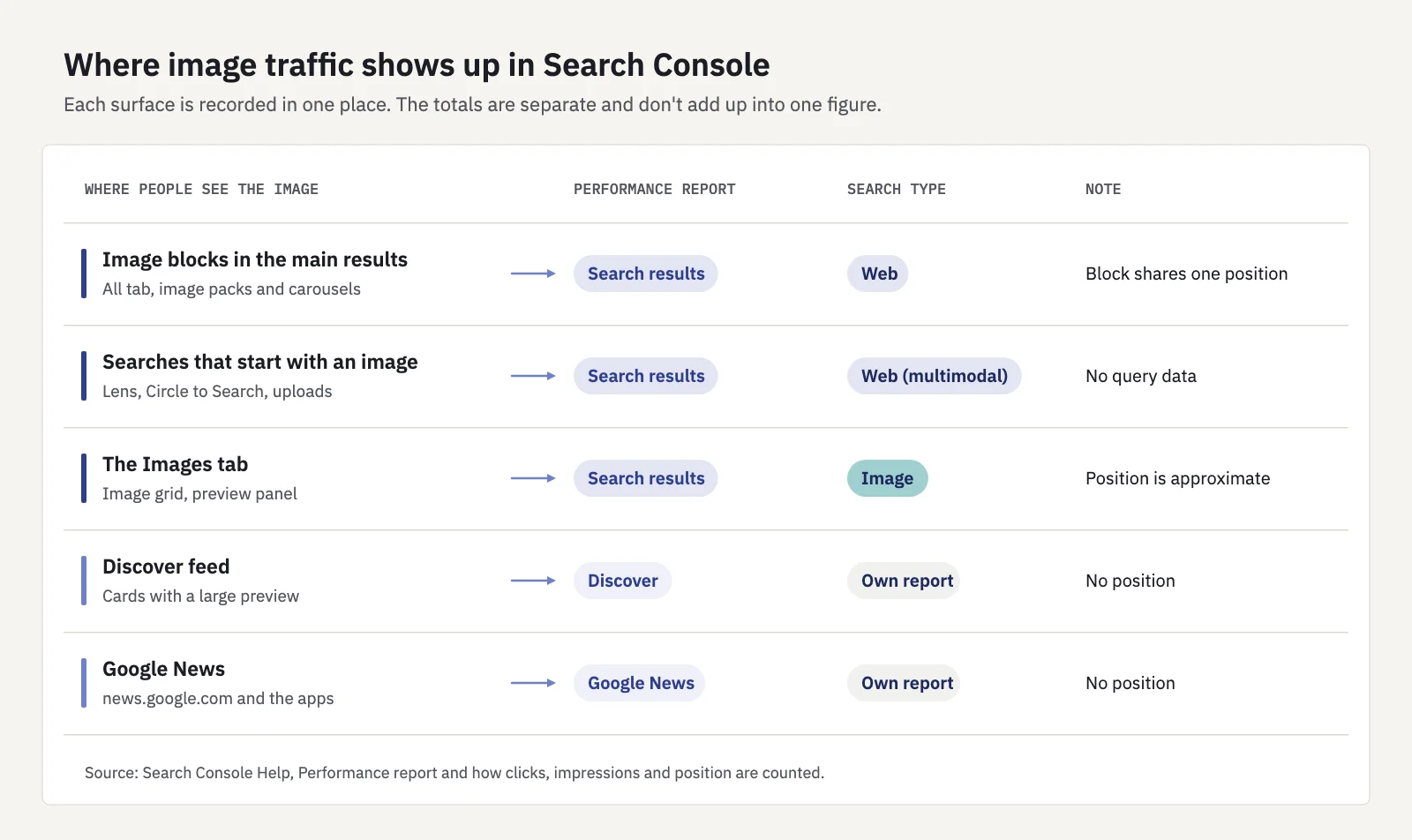
Image traffic isn't in one place. It's split across search types in the Performance report and across separate reports.
| Where people see your image | Where to read it in Search Console | Notes |
|---|---|---|
| Image blocks and carousels in the main results ("All") | Performance > Search results, Search type: Web | An image block shares one position |
| Searches made with an image (Lens, Circle to Search, uploads) | Search results, Search type: Web, multimodal view | No query data |
| The Images tab | Search results, Search type: Image | Position is a rough guide |
| Discover feed cards | Performance > Discover (separate report) | No position |
| news.google.com and the Google News app | Performance > Google News (separate report) | Clicks, impressions, CTR only |
The definitions come from Google's Performance report help. Web is now split into text-based and multimodal views. The multimodal view covers searches that start with an image, and Google's dimensions documentation notes that query data isn't available for that traffic. The Image search type covers results in the Images tab only.
Discover and Google News each have their own report. The Discover report shows clicks, impressions and CTR, with no position, and appears only once your site reaches a minimum number of Discover impressions. The Google News report covers news.google.com and the News apps; the News tab inside Google Search is a search type in the main report instead.
How image impressions and clicks are counted
Google's article on how clicks, impressions and position are counted has rules for images that explain most of the odd numbers you'll see:
- In the Images tab, an impression needs the image scrolled into view. In the main results, images count whether or not they're scrolled into view, except inside a carousel, where they must be scrolled into view.
- Expanding a thumbnail isn't a click. A click counts when someone clicks the expanded image or otherwise leaves Google Search for your site.
- One impression per page, per search. Three images from the same page in one set of image results count as one impression for that page.
- Image position is approximate. In the Images tab, results are counted left to right, then top to bottom, and how many fit in a row depends on the screen.
- Web and Image data are recorded separately, and Search Console doesn't combine them. Don't add the Image totals to the Web totals and call it "total search".
That second rule matters most for CTR. Someone can open your image in the preview panel, look at it closely and move on without a click being recorded, so Image CTR runs on different terms from Web CTR. Compare image pages with other image pages, and each against its own history. Our guide to a good CTR explains how to build that baseline from your own data.
Reading image performance step by step
Here's a routine for finding which pages and queries earn image traffic and where it's slipping.
- Open Performance > Search results and click the Search type filter at the top. Switch from Web to Image. Pick the last 3 months to start.
- Read the Queries tab. Expect them to differ from your web queries: people searching for images often name the thing they want to see, like a product and a color, a diagram or an example. Note which queries bring clicks, not just impressions.
- Switch to the Pages tab. These are the landing pages Google credits for image results, not the image files. Sort by impressions to see which templates (products, recipes, guides) carry image search.
- Compare date ranges. Use Date > Compare to set the last 3 months against the previous 3 months, then sort by the click difference to find pages that lost image clicks.
- Check the same pages in Web. Click a page, then switch the search type back to Web. A page that lost image clicks but kept web clicks points to an image problem (a changed file URL, a removed image, a broken
srcset). A page that lost both is a page problem. - Look at the multimodal view if your products or places are things people photograph. It shows which pages Lens and Circle to Search send to you, by page, country and device.
- Inspect the losers. Run each affected page through URL Inspection and check the rendered HTML for the image URL, the alt text and whether the image loads without interaction.
To isolate one template, add a Page filter with Custom (regex), for example /products/. The Search Console regex tester lets you check a pattern before you use it, and our list of Search Console regex filters has patterns worth saving.
Fixing what the report shows
Most findings fall into a few patterns:
- Image impressions, almost no clicks. People see the image but don't visit. Check that the landing page actually matches the image: if someone wants that exact shoe, the page should show it and say what it is near the image, not three scrolls down.
- Web traffic, no image impressions at all. Check how the images are embedded. CSS backgrounds, images injected after a click, and JavaScript galleries without real
srcURLs are the usual causes. Add them to an image sitemap once they're crawlable. - A sudden drop after a redesign. New image URLs, a new CDN host or a template that switched to CSS backgrounds can all reset image visibility. If file URLs change, Google has to find and crawl the new ones, so we recommend keeping old image URLs working, or redirecting them, until it has. Our website migration checklist covers the rest.
Serplyze reads the Web search type, so Images tab, Discover and News traffic stays in Search Console (see how the data works). Where it does help is the web side of an image fix: page groups built from URL rules show each template's web clicks and impressions over time, so you can see whether a gallery or product template moved after you changed its images.
Key takeaways
- Google indexes images from
<img>elements (including inside<picture>), not CSS backgrounds. Use a supported format and keep image URLs stable. - Use descriptive filenames, alt text written for people, and relevant text near the image. Add an image sitemap for images Google can't find by itself.
- Lazy-load below-the-fold images only, so they load on viewport entry without user actions. Never lazy-load the main image.
- Set the page's preferred image with
og:imageorprimaryImageOfPage, and allow large previews withmax-image-preview:largefor Discover. - In Search Console, image traffic is split: Web (including the multimodal view), Image, and the separate Discover and Google News reports. They don't add up into one total.
- Expanding a thumbnail isn't a click, so judge Image CTR against image pages and its own history, not against Web CTR.
Serplyze tracks your web search rankings and page traffic from your own Search Console data, so you can see what an image or template change did to the pages that earn your clicks. Start free and connect your property in a couple of minutes.