A content audit gives every page on your site one decision: keep, update, merge, redirect, or remove. This guide builds that inventory from your own Search Console data, adds conversions, links and intent overlap, and sorts each page with one decision matrix.
What a content audit is, and what it isn't
A content audit is an inventory. You list every indexable page, attach the numbers that show whether it earns its place, and record a decision for each one. The result is a spreadsheet with an action column and an owner for every row, not a report.
A technical audit asks whether Google can crawl, render and index the site. A content audit asks whether each page deserves to be there at all. The two overlap at the edges, but they're different jobs on different schedules. Our guide to how often to run an SEO audit covers the monthly technical routine. A content audit is heavier work, so it usually runs once a year, before a redesign or migration, or when a section has stopped growing and nobody knows why.
What you get out of it:
- A shorter site. Pages that split the same intent get merged, and dead pages are retired.
- An update queue. Pages that rank but are slipping get a refresh, ordered by clicks at stake.
- Fewer surprises. You know which pages carry conversions and links before anyone deletes them.
Step 1: Build the inventory
Start with a list of URLs that's as complete as you can make it. No single source has every page. The sitemap leaves out orphans, a crawl misses pages nothing links to, and Search Console only lists pages that got impressions. We cover how to combine them in how to find all pages on a website. Use that master list as column A.
Then add one row per URL and these columns. This is the content audit template we use:
| Column | Source | Why it matters |
|---|---|---|
| URL, section, page type | Master list, URL folder | Lets you decide by section instead of page by page |
| Clicks and impressions, last 12 months | Search Console, Pages | Is the page used at all? |
| Clicks, last 3 months vs the same 3 months a year earlier | Search Console, Compare | Trend without seasonality |
| Top query and average position | Search Console, page filter | What the page is actually found for |
| Organic key events | GA4, Landing page report | Business value beyond traffic |
| Internal and external links | Search Console, Links report | What you'd lose by deleting it |
| Overlaps with | Your notes, query × page data | Merge candidates |
| Decision, owner, done date | You | Turns the sheet into work |
Keep the sheet flat: one row per URL and one value per cell. You'll sort and filter it a lot.
Step 2: Pull 12 to 16 months of search data per page
Twelve months is the minimum. Anything shorter can't tell a seasonal dip from a real decline. Search Console keeps 16 months of performance data, so use all of it if you can.
- Open Performance > Search results and set the search type to Web.
- Set the date range to the last 12 months (or a custom range back to the start of the 16 months), then switch the table to the Pages tab.
- Export the table. You get clicks, impressions, CTR and position per page for the whole range.
- Open the date filter again and choose Compare. Pick the last 3 months against the same 3 months a year earlier, and export again. The difference is your trend column.
- Join both exports to the inventory on URL. Pages with no row had no impressions in the period. Keep them in the sheet: they're usually the clearest remove-or-redirect candidates.
The UI shows and exports at most 1,000 rows. If the site has more pages with impressions than that, pull the data through the Search Analytics API, Looker Studio or the bulk export to BigQuery, or audit one section at a time with a Page filter.
Don't diagnose trends from the two numbers alone. A page that fell 40% year over year might be decaying, might have lost a query to another of your pages, or might serve a topic people search less for. Content decay covers how to tell those apart. For the audit, a trend column and a "check" flag are enough.
Step 3: Add conversions and links
Traffic alone makes for bad decisions. A pricing FAQ with 40 clicks a month can matter more than a news post with 4,000.
- Conversions. In GA4, the Landing page report has a Key events column. Filter the session source to Google organic, set the same 12 months, and export key events per landing page. If you sell online, export revenue too. A page with key events doesn't get removed, whatever its traffic.
- External links. The Links report in Search Console lists your top linked pages from other sites. It's a sample, not a full list, and single-table exports stop at 1,000 rows, but it's enough to flag pages that other sites point to. Those pages get redirected, not deleted, so the links keep pointing at something useful.
- Internal links. The same report's internal table shows which pages your own site links to most. A page with many internal links and no traffic often means the links point at the wrong page, or the page has no search role at all (a login or contact page, which is fine).
Step 4: Classify each page with the decision matrix
Give every page two labels. The first is how it performs in search: strong and steady, declining or stuck just off page one, or little to no traffic. The second is its role: does it serve a unique intent, the same intent as another of your pages, or one that no longer exists (a discontinued product, an expired offer, an outdated version)? The matrix then gives a default action.
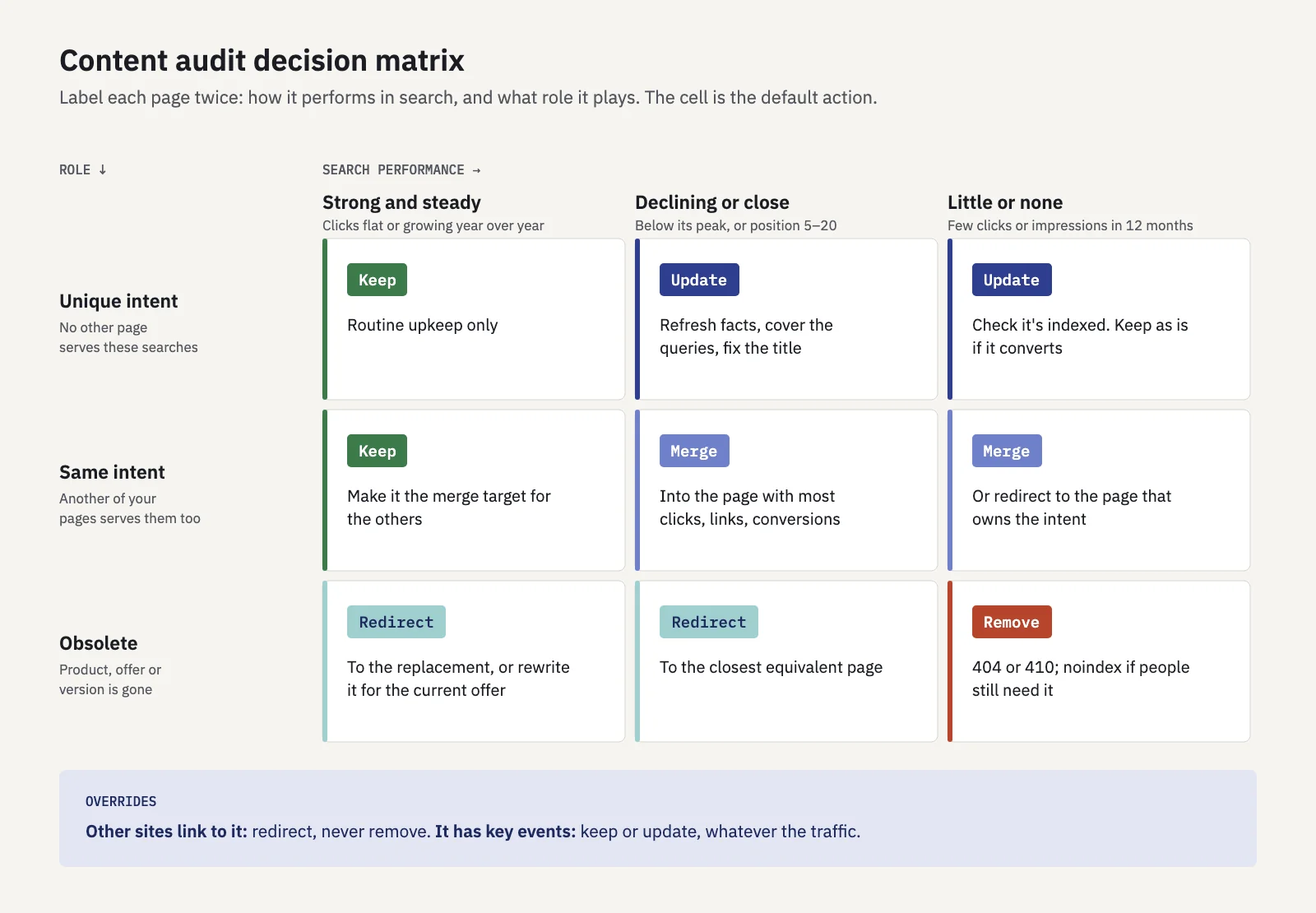 Defaults, not rules. Links and conversions override the bottom-right corner.
What each action means in practice:
| Action | Typical page | What you do |
|---|---|---|
| Keep | Steady clicks, unique intent, nothing out of date | Nothing beyond normal upkeep; note the date you checked it |
| Update | Ranks 5 to 20, or slipping from its peak | Refresh facts and examples, cover what the query list asks, fix the title |
| Merge | Two pages answer the same searches | Move the useful parts into the stronger URL, then redirect the weaker one |
| Redirect | Obsolete, but a close replacement exists or other sites link to it | 301 to the closest equivalent page, not the home page |
| Remove / noindex | No traffic, no links, no conversions, no purpose | Return 404 or 410; use noindex when people still need the page but search doesn't |
A few details that trip people up:
- Redirects. A permanent 301 or 308 tells Google that the target should be the canonical URL. Point it at the page that answers the same need. Redirecting everything to the home page sends visitors somewhere they didn't ask to go.
- 404 or 410. Google treats all 4xx codes except 429 the same way, so pick whichever your server makes easy. A page that says "not found" but returns 200 shows up as a soft 404 in Search Console.
- Noindex. Use it for pages people need but that shouldn't be search results: thin tag archives, internal search results, campaign landing pages. The page must not be blocked in robots.txt, or Google never sees the noindex rule.
- Don't remove pages to look fresh. Google's helpful content guidance asks whether you're "removing a lot of older content" for that reason, and answers that it won't help. Remove a page because it's useless to the reader, not as a ranking trick.
Checking intent overlap before you merge
"Same intent as another page" is the label people guess at most, and the one that matters most. Two posts with similar titles can serve different searches, and two posts with different titles can compete for the same query.
Check it in the data, not the titles:
- Take one candidate pair. For example, a "what is X" post and a "X explained" post.
- Filter Performance by the first page and export its queries. Do the same for the second page.
- Compare the top 20 queries of each. If most of them are the same queries, the pages serve one intent. If they barely overlap, they don't.
- Look at the queries both pages get impressions for. If they take turns ranking for the main query, that's keyword cannibalization, and a merge usually fixes it.
When you merge, the target is the URL with the most clicks, links and conversions combined, not the newer or prettier one. Carry over every section that earned queries on the weaker page, so the merged page answers both query lists.
Working through the audit at scale
A site with 3,000 pages won't get 3,000 individual decisions. Decide by section first, then handle the exceptions.
- Group pages by section and template. The URL folder usually does this for you: /blog/, /products/, /help/, /tags/.
- Decide a default per section. "Tag archives: noindex." "Help articles: keep unless obsolete." "Blog posts with no impressions in 12 months: remove unless linked or converting."
- Flag the exceptions. Within each section, sort by clicks and by key events. The top and the bottom of each list are the pages that need a real look.
- Batch the work by action. Merges and redirects go to whoever handles the server or CMS, updates to writers, and removals to whoever can check the links first. A list of 40 updates sorted by clicks lost is a quarter's plan. A list of 400 is not.
- Ship in waves. Do the redirects and removals for one section, wait for the data to settle, then move to the next. If something goes wrong, you'll know which wave caused it.
Serplyze helps with the grouping. Its Traffic screen has Folders and Groups tabs that roll clicks and impressions up by URL folder or by a page group you define with URL rules (up to 100 per project), and the Pages tab can be filtered to one group. The content decay heatmap ranks pages by clicks lost against their own best month over up to 16 months, which fills the trend column for the pages that matter most.
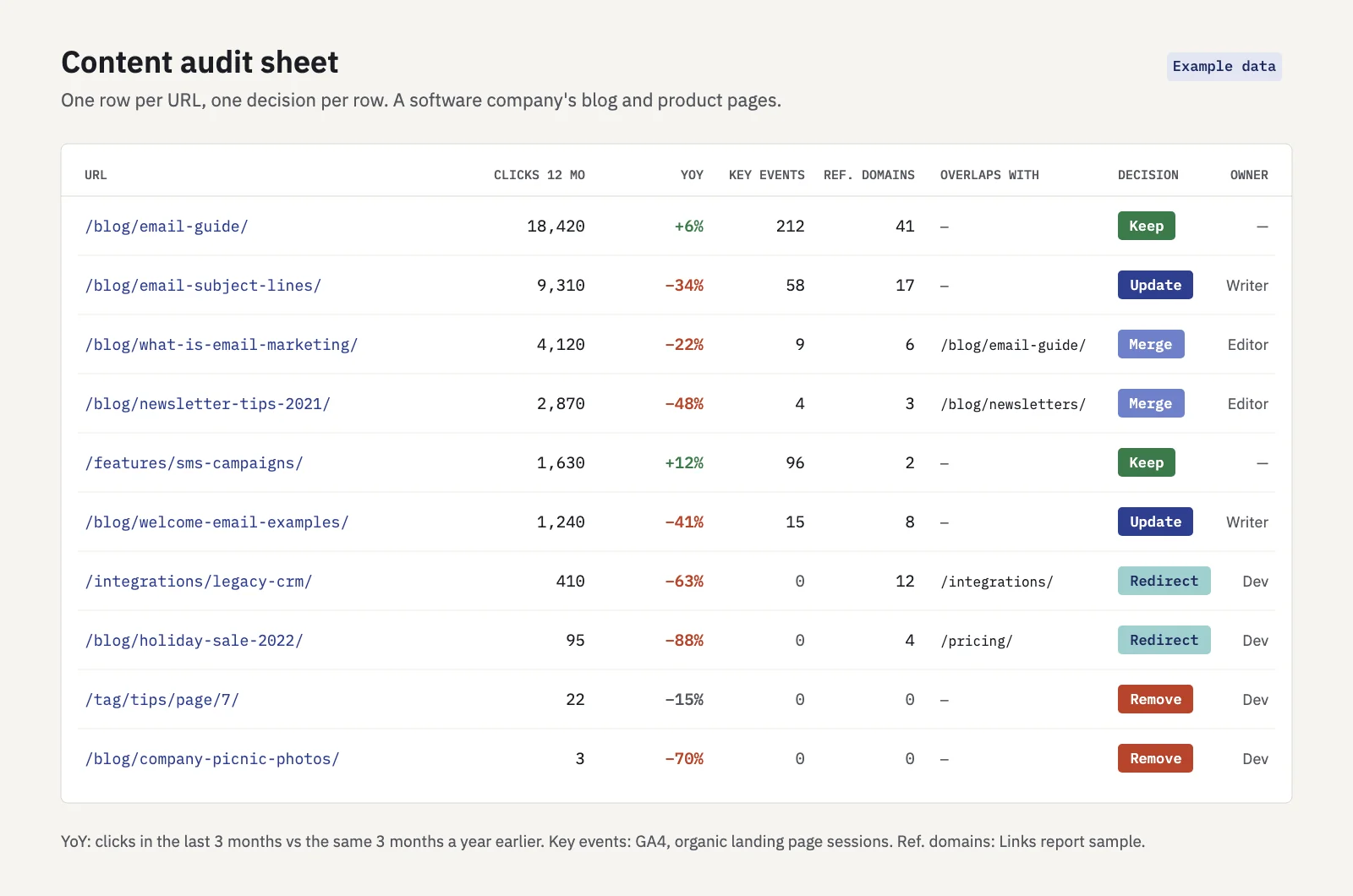 Example data. Every row ends in one decision and an owner.
Measuring the results
An audit without a follow-up is just a cleanup. Record what you changed and when, so you can check it later.
- Log the date of every change next to the row: when the update went live, when the redirect started, when the page was removed.
- Compare like with like. Take the 28 days before the change and 28 days after it, starting a week or so after the change so Google has time to recrawl. Compare the changed pages with the whole site over the same windows, so a seasonal swing doesn't look like your win.
- Measure merges on the target URL. The redirected page's clicks should show up on the target. Measure the pair together: if the target gained less than the redirected page lost, the merged page doesn't answer the old page's queries yet.
- Watch the Page indexing report after removals and redirects. Removed URLs should appear as not found or as redirects. A rise in soft 404s means something returns 200 where it shouldn't.
- Re-run the sheet in a year. Keep this year's file. Next year's audit starts from it, and you'll see which decisions held.
In Serplyze, each change can be logged as an Action on paid plans, with its page URLs, tracked keywords or a page group as the target. By default it compares 28 days before with 28 days after a 7-day lag, on clicks, impressions, CTR and position, next to the whole site's change in the same windows, and it marks the change on every chart in the project. That makes "did the merge work?" a lookup, not a spreadsheet job.
Key takeaways
- A content audit is an inventory with one decision per URL: keep, update, merge, redirect or remove. It's separate from a technical audit.
- Start from a complete URL list, then add 12 to 16 months of clicks and impressions, a year-over-year trend, key events and links.
- Classify each page by search performance and by role (unique, overlapping or obsolete); the matrix gives the default action.
- Links and conversions override traffic: a linked page gets redirected, and a converting page gets kept or updated.
- Check intent overlap in the query data before merging, and merge into the URL with the most clicks, links and conversions.
- Decide by section, ship in waves and compare each change with the whole site over the same windows.
Serplyze reads your Search Console data into page groups, folder roll-ups and a 16-month decay heatmap, and measures every change you log against the rest of the site. Start free and build your next content audit from data you already have.